Chronos Timeline
 Claire Froelich66k downloads
Render interactive timelines inline in your notes from simple markdown
- Overview
- Scorecard
- Updates67
Render interactive timelines in your Obsidian notes from simple Markdown. Make time make sense.
Powered by chronos-timeline-md, a markdown wrapper for vis-timeline.
Try it in the Live Playground
Features
- Portable plain text data
- Bases view
- Note linking
- Inline snippets
- Text-to-timeline with AI (multi-provider)
- Edit timelines with AI
- Generate combined timeline from all Chronos items in folder
- Grouping
- Colors
- Render timelines anywhere outside Obsidian
Quickstart
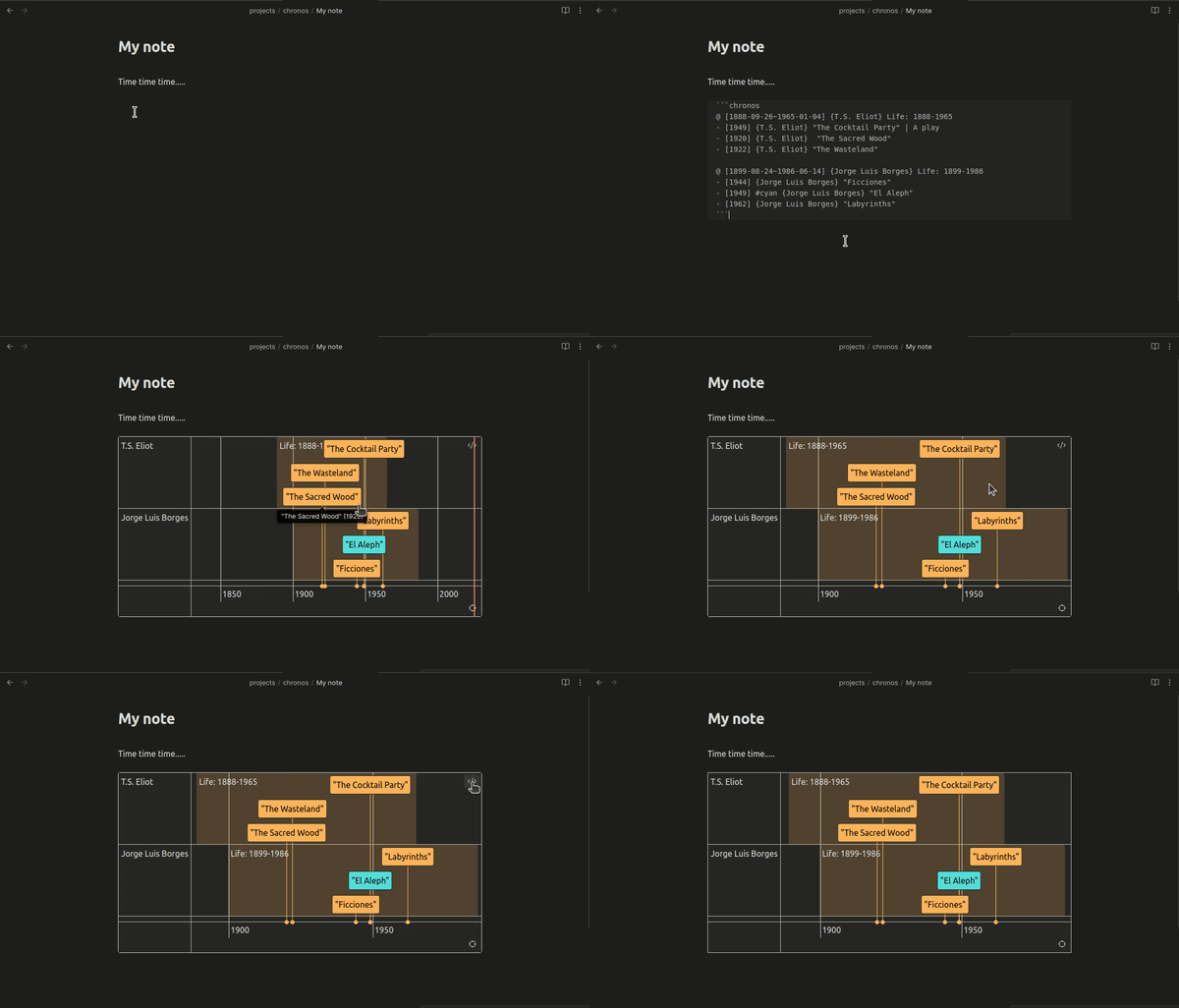
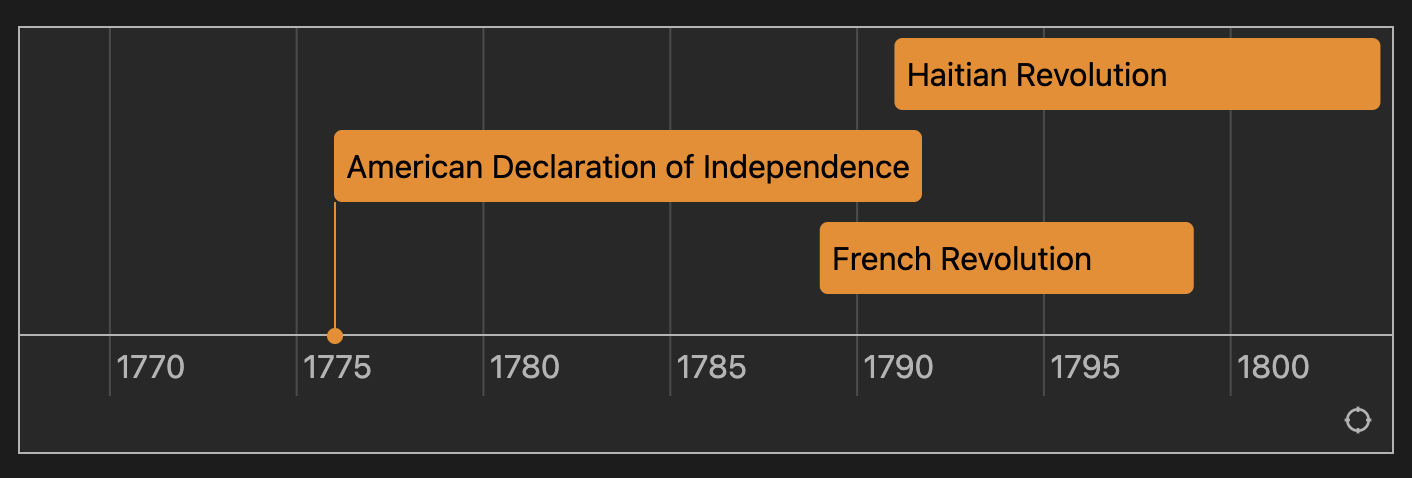
Create timelines in your notes by opening a chronos codeblock and adding items
```chronos
- [1789~1799] French Revolution
- [1791~1804] Haitian Revolution
- [1765~1783] American Revolution
* [1776] American Declaration of Independence
```
<img src="./docs/chronos-revolutions.png/>
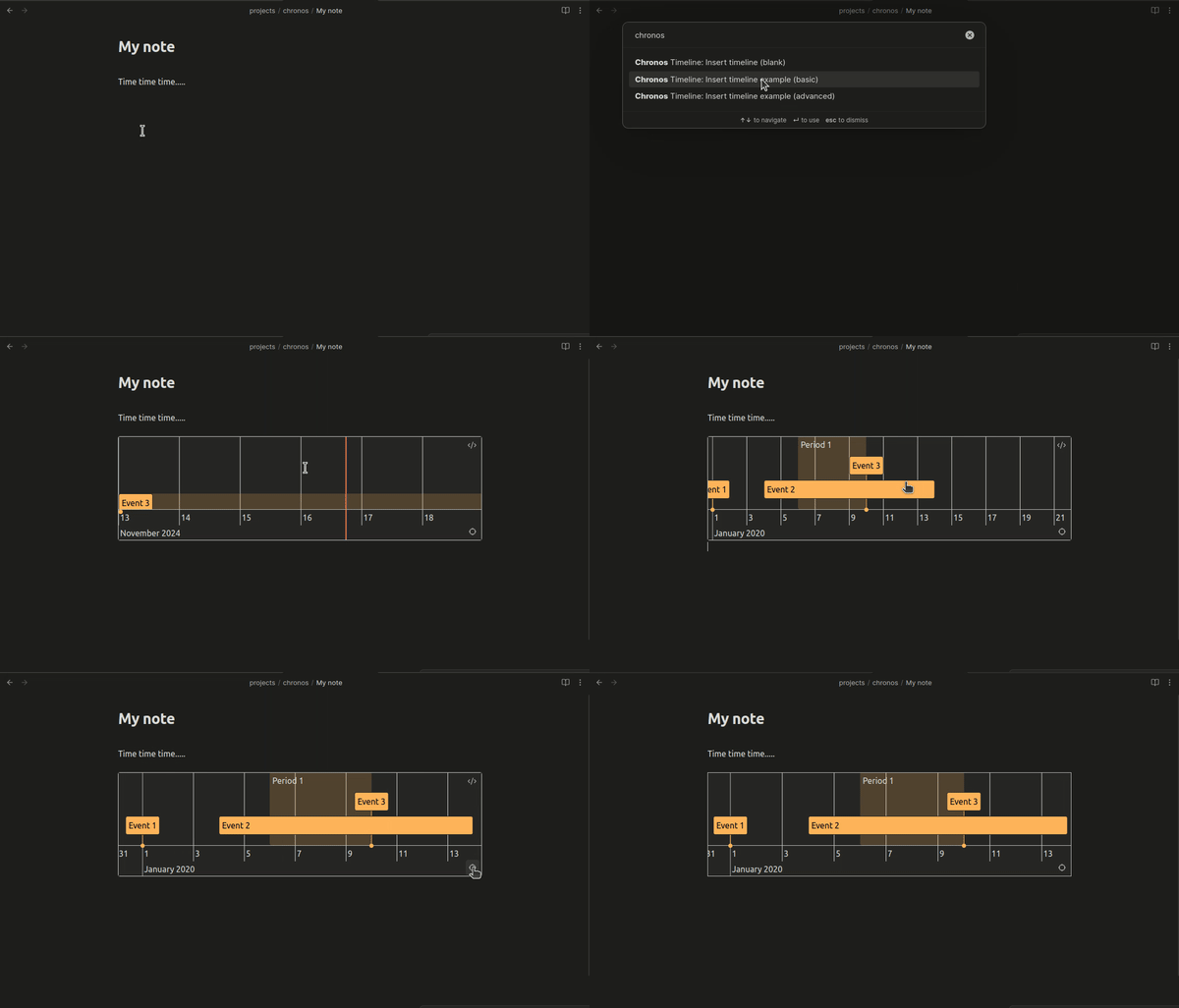
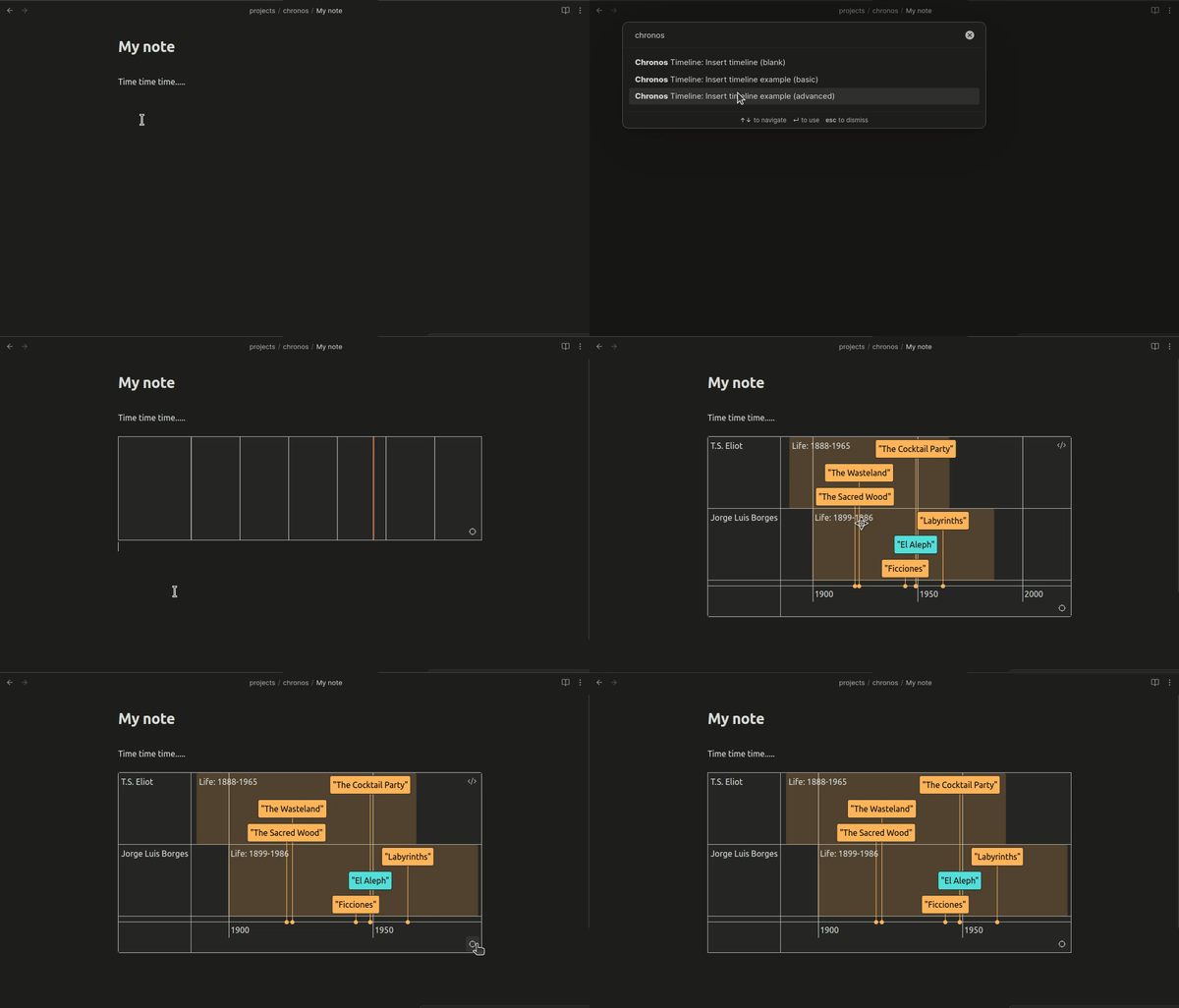
You can insert blank, basic, or advanced templates using the Command Pallete (ctrl/cmd + p, "Chronos")
Insert basic template
Insert advanced template
Insert snippet widget
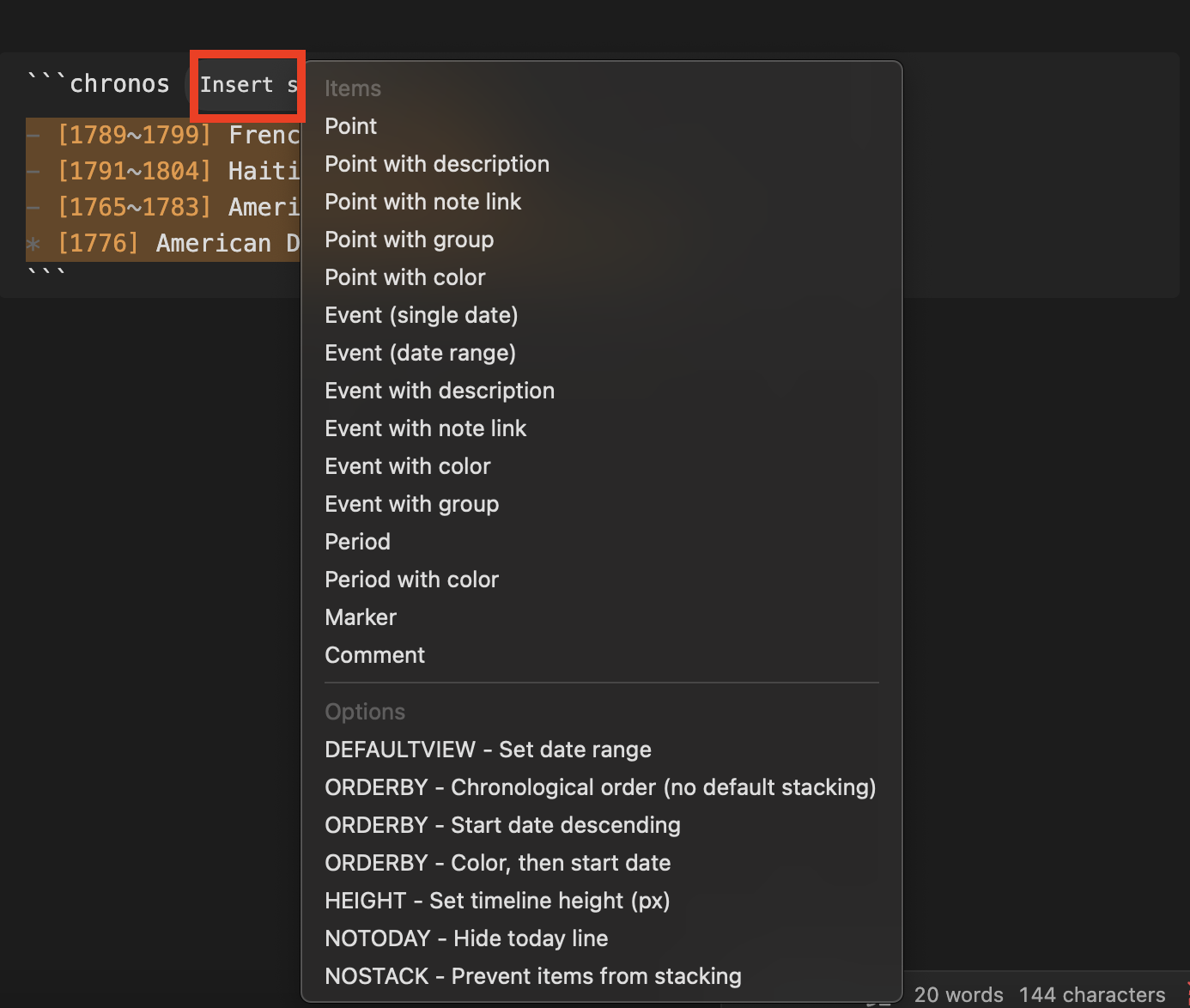
While editing inside a Chronos code block, use Insert snippet to add a point, event, period, marker, comment, or flag at the cursor.
You can click the button or press Mod+Shift+Enter (Ctrl+Shift+Enter on Windows/Linux, Cmd+Shift+Enter on macOS). This shortcut works only inside a Chronos code block; Tab keeps Obsidian's normal indentation behavior.
Generate timeline with AI
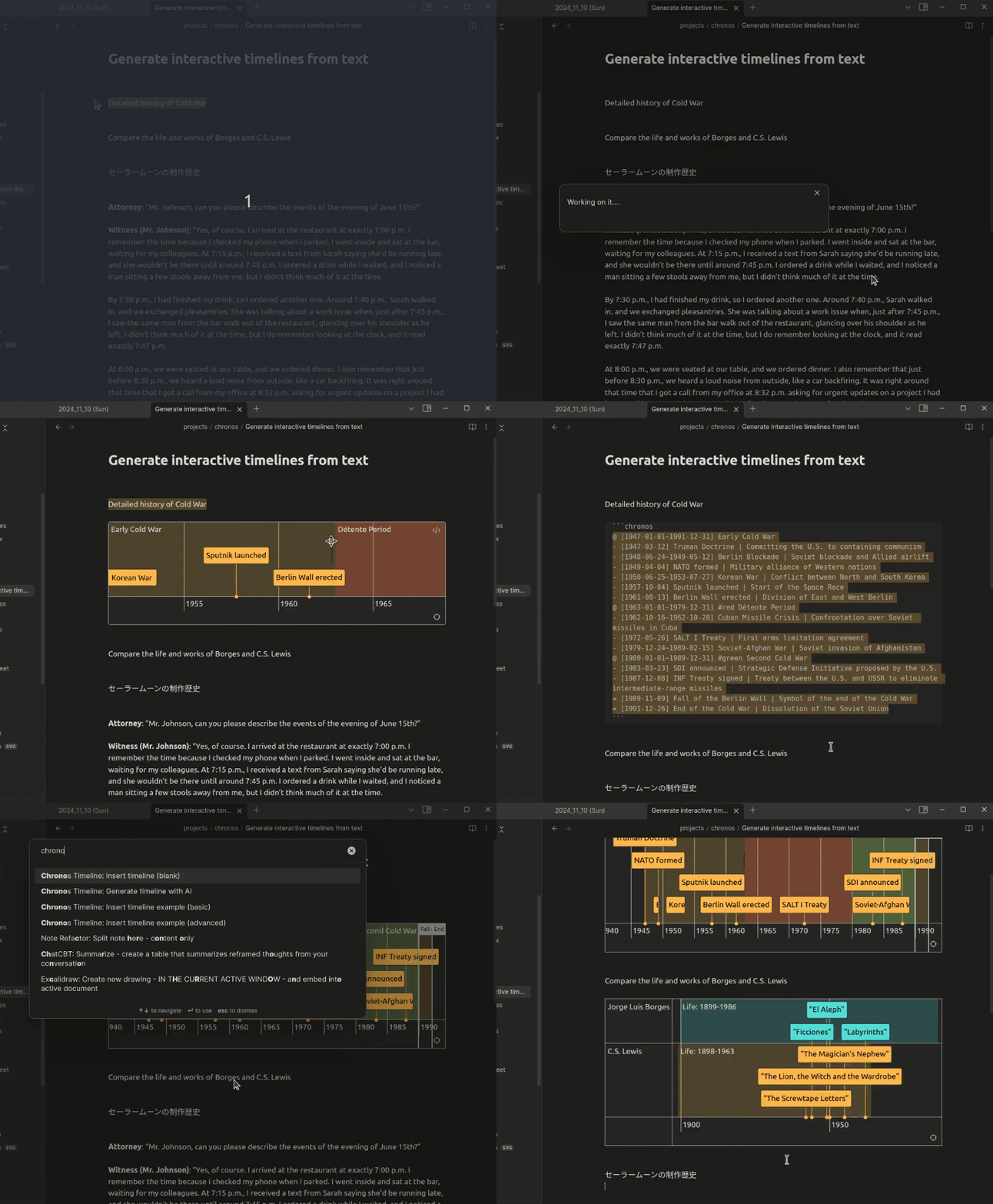
Highlight text in your notes and run the "Generate" command.
Choose a provider in Chronos settings. Cloud providers use a key selected from Obsidian SecretStorage. OpenRouter, Ollama, and LM Studio use OpenAI-compatible endpoints; the local model list is loaded from the server's /models endpoint. Set the base URL first, then use Refresh models if you change the server or model list. Ollama and LM Studio do not require an API key.
For another OpenAI-compatible service, select Other OpenAI compatible and enter its model name and API base URL (for example, https://example.com/v1, without /chat/completions). Select an API key from Obsidian SecretStorage if the service requires one. The service must support the OpenAI-compatible chat completions API. The configured service receives the text or timeline and instructions you submit.
Input can be long text in your notes with time information, or vague like:
- "Detailed history of the Cold War"
- "Compare the life and works of Borges and C.S. Lewis"
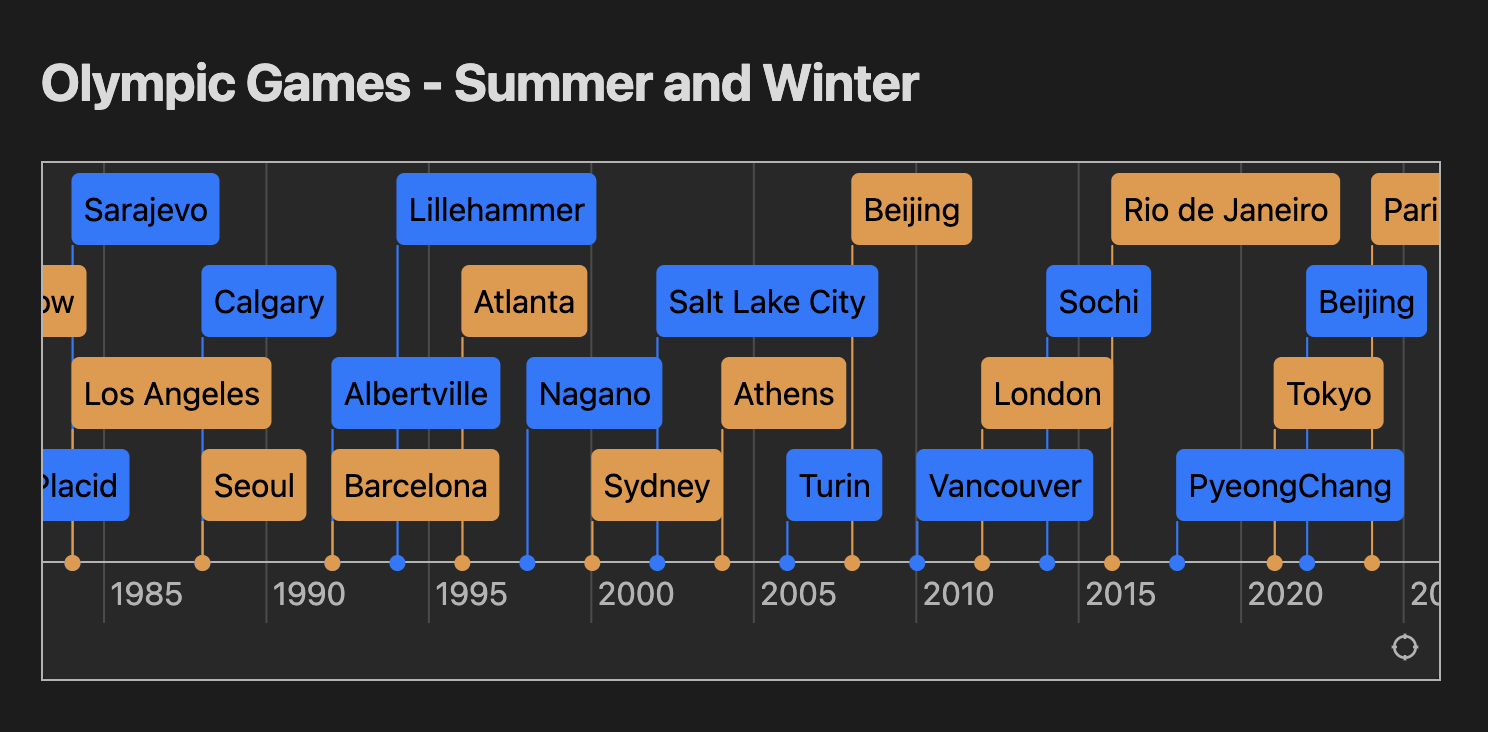
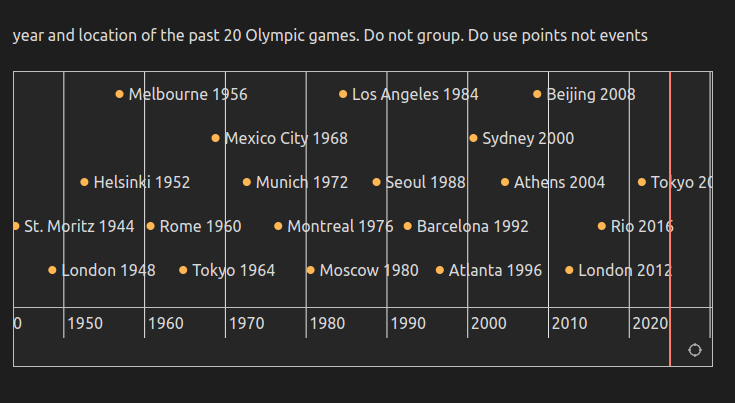
- "Year and location of the past 20 Olympic games. Do not group. Do use points not events"
Edit timeline with AI
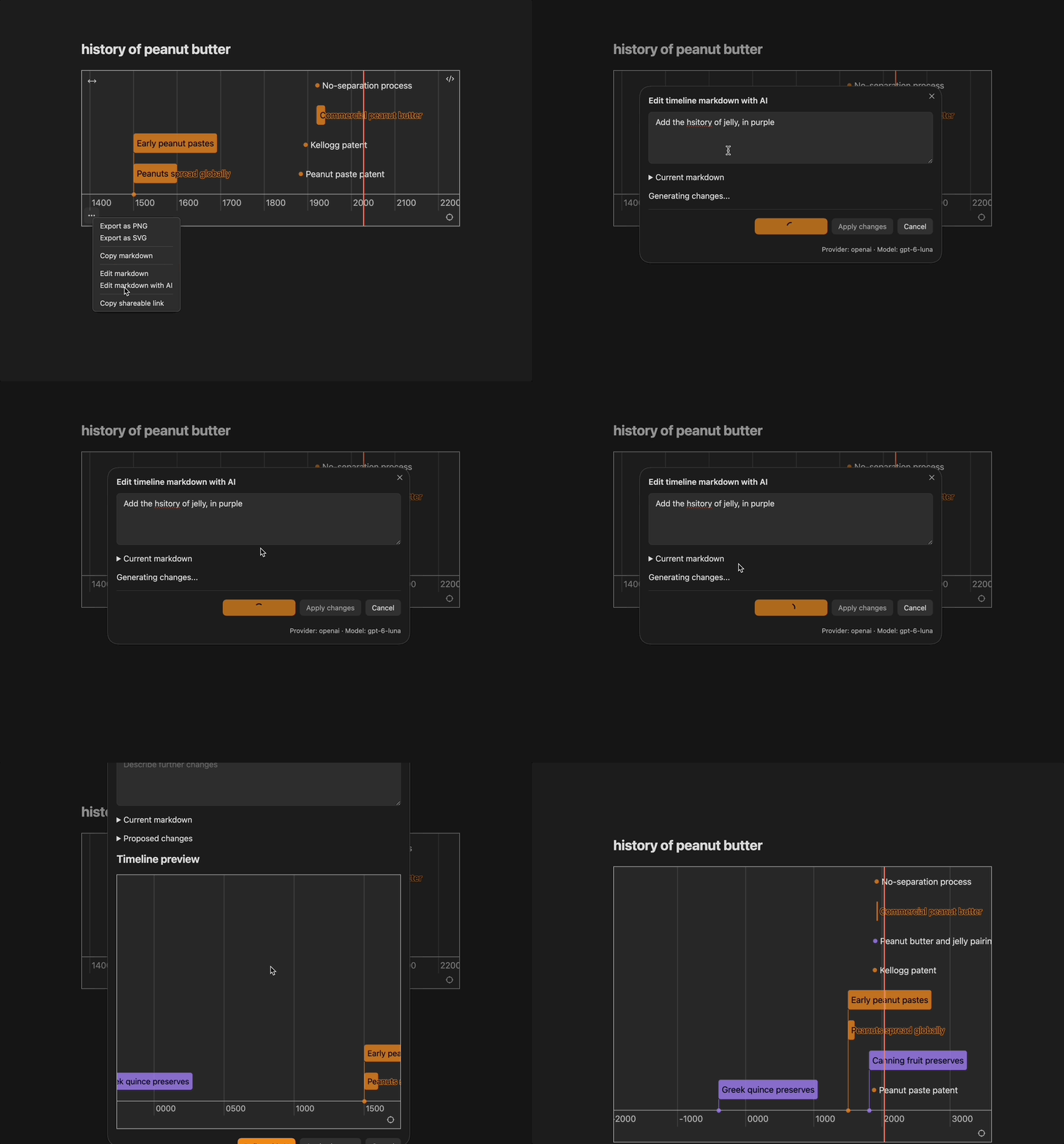
With Use AI features enabled and a provider configured in Chronos settings, open the options menu in the lower-left corner of an inline timeline and select Edit markdown with AI. Describe the changes you want and select Generate changes. The timeline markdown and your request are sent to the configured provider.
Review the proposed changes and timeline preview before applying them. To revise the proposal, enter further instructions and select Refine with AI. The preview is hidden while the new proposal is generated and returns to the previous proposal if the refinement fails.
AI editing is not available in Bases timelines.
Generate timeline from folder
Automatically create combined timelines from all Chronos items found in a folder.
NOTE: This is for statically generating a timeline from a folder. For dynamic timelines, use the Chronos Timeline Bases view.
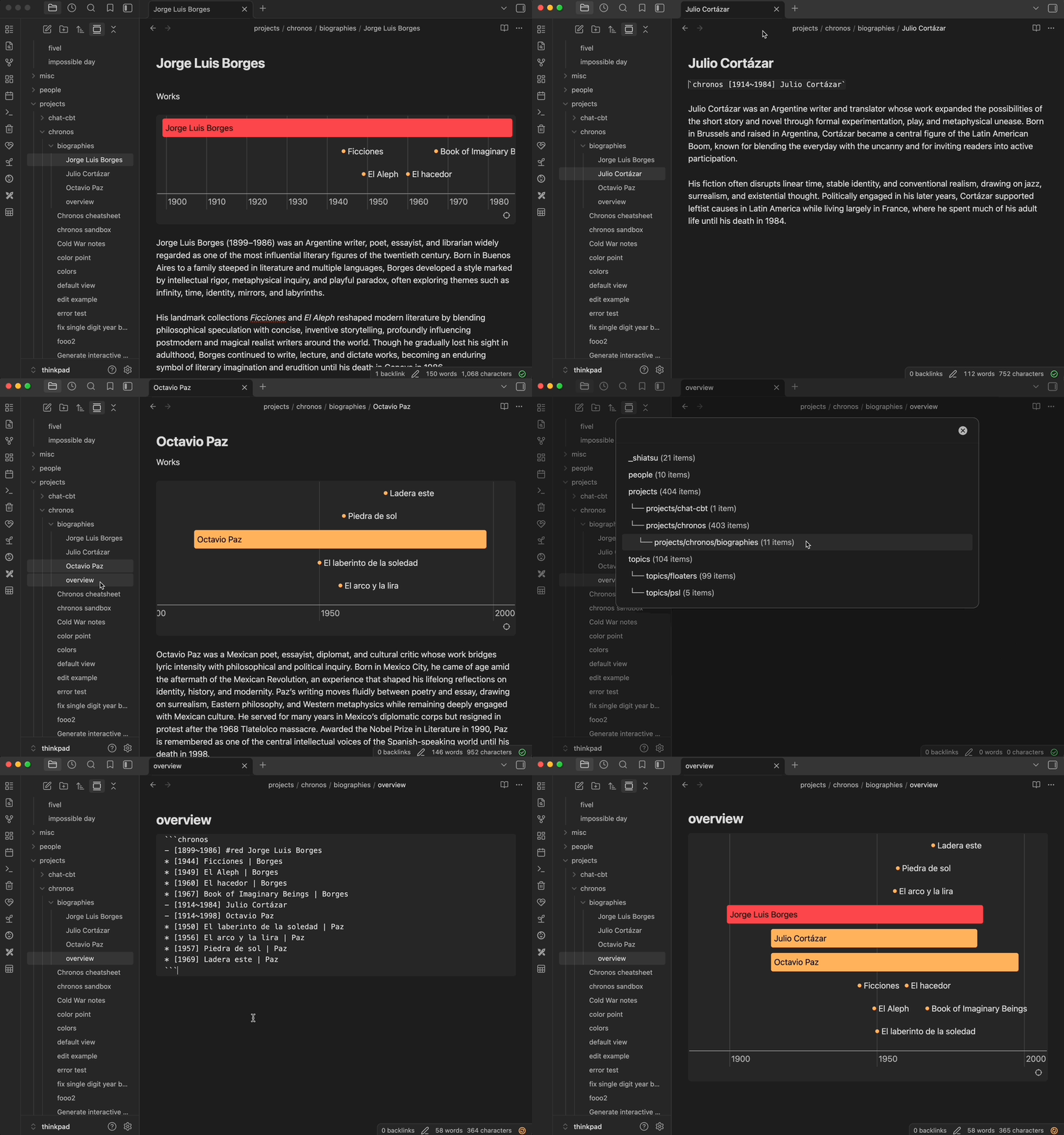
Use the command palette (Cmd/Ctrl + P): Chronos > Generate Timeline from Folder
The plugin will:
- Show you a list of folders that contain Chronos items
- Extract all Chronos items from the selected folder
- Generate a combined timeline using all these items
- Insert the timeline code at your cursor position
This is perfect for:
- Visualizing collections of dated notes (journals, meetings, project milestones)
- Combining themed items (by topic, person, project, etc)
- Generating chronological overviews of any folder
Timelines with 26+ items automatically get a HEIGHT 300 flag for easy viewing. You can remove the flag if you prefer.
Tip: Use inline chronos blocks in your notes for quickly collecting timeline items that you don't particularly care about rendering in respective notes
The below item will not render in your notes, but will be picked up in the "Generate Timeline from Folder"

`chronos @ [2025~2026] Year of the Snake`

If you omit the Chronos item type (Event `-`, Period `@`, Point `*` etc), it will default to an Event (`-`) in your combined timeline.

`chronos [2025~2026] Year of the Snake`

^ Event
Cheatsheet
After installing the Chronos Timeline plugin, paste the contents of this cheatsheet into a file in your vault to play with examples
Contents
- Chronos Timeline: interactive timelines for Obsidian
- Syntax Overview
- Obsidian Bases view
- Note linking (beta)
- Actions
- Display settings
- Localization
Syntax Overview
Chronos parses Markdown in chronos code blocks into objects on a timeline
```chronos
<chronos timeline items here>
```
The first character of each line in your chronos block determines the item type:
Certain items can be modified with colors and group membership (see Modifiers)
A note on dates
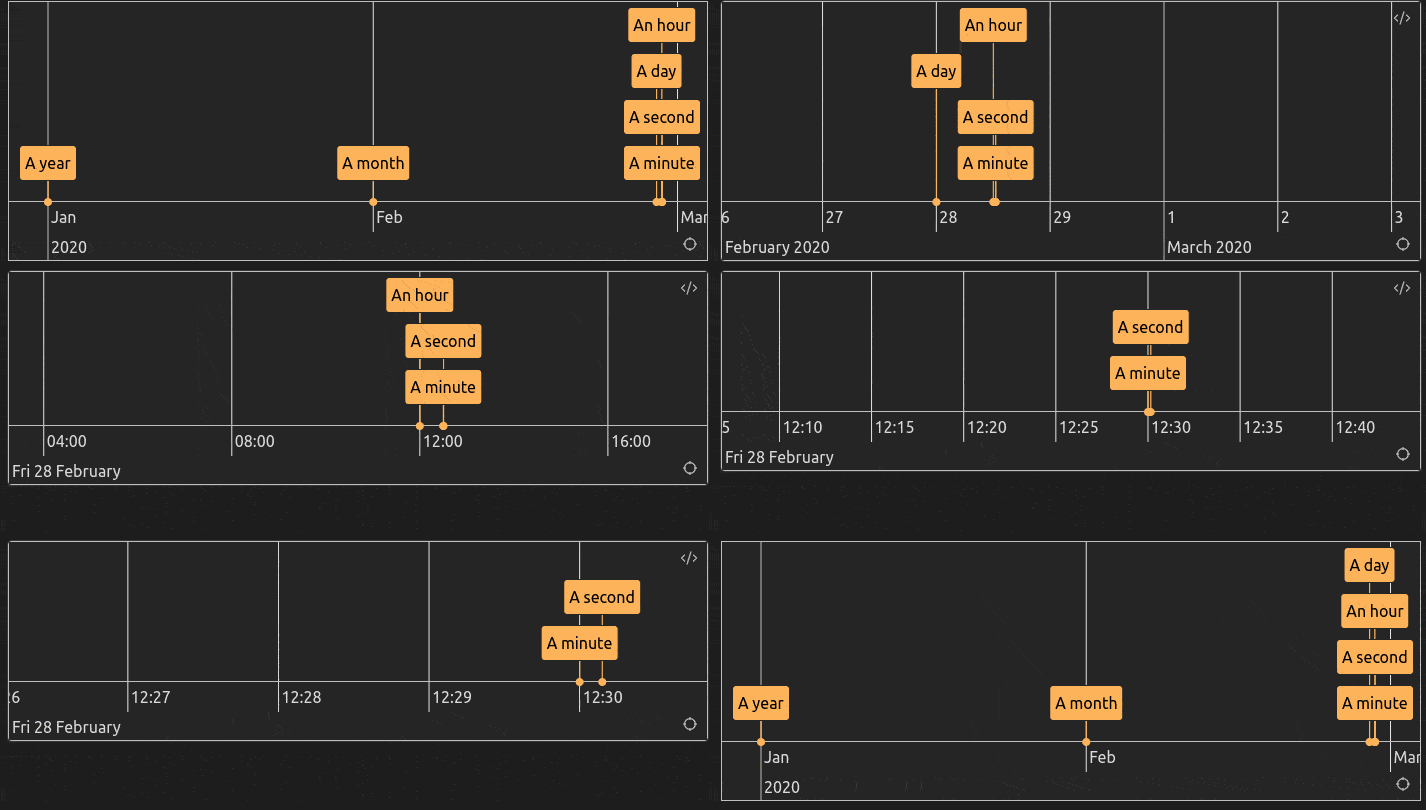
Chronos can visualize dates from the year down to the second level, using the syntax YYYY-MM-DDThh:mm:ss.
The only required component of a date is the year (YYYY). Beyond that, you can specify additional time granularity as needed for your use case.
If not explicitly provided:
- The month and day default to
01(January and the 1st) - The hour, minute, and second default to
00(top of the hour or minute)
Hours use 24-hr military time. So 3am is 03, while 3pm is 15
Examples
- [2020] A year
- [2020-02] A month
- [2020-02-28] A day
- [2020-02-28T12] An hour
- [2020-02-28T12:30] A minute
- [2020-02-28T12:30:09] A second
Date ranges
Date ranges are separated by a tilde ~, NOT a hyphen! Look out :)
The start and end date must be in chronological order.
- [2020~2024]
- [2024-02-28~2024-05-11]
- [2024-02-28T05:30~2024-02-28T08:30]
BCE time
You can signify BCE times with the negative symbol (-)
- [-10000]    <--- 10000 BCE
- [-550~-20]  <--- 550 ~ 20 BCE
- [-550~550]  <--- 550 BCE ~ 550 CE
Limitations
- Dates must be between year 271,821 BCE and 275,761 CE, due to how Dates work in JS
Events -
Events can include a single date or a date range.
Events with a single date
Syntax
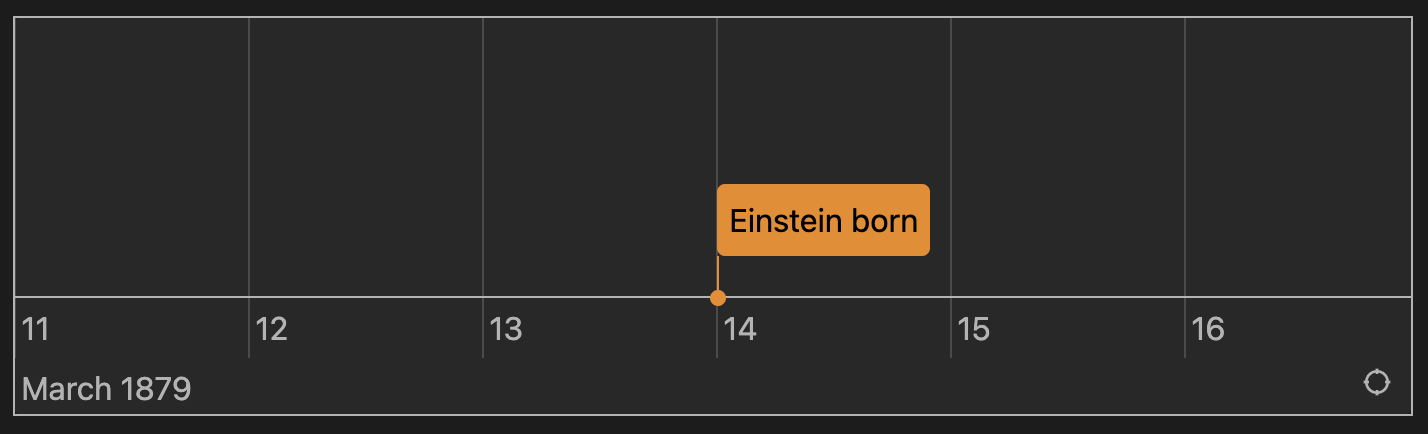
- [Date] Event Name
Only [Date] is required. If no Event Name is provided, the event title will default to the date or date range.
Example
```chronos
- [1879-03-14] Einstein born
```
Events with start and end dates
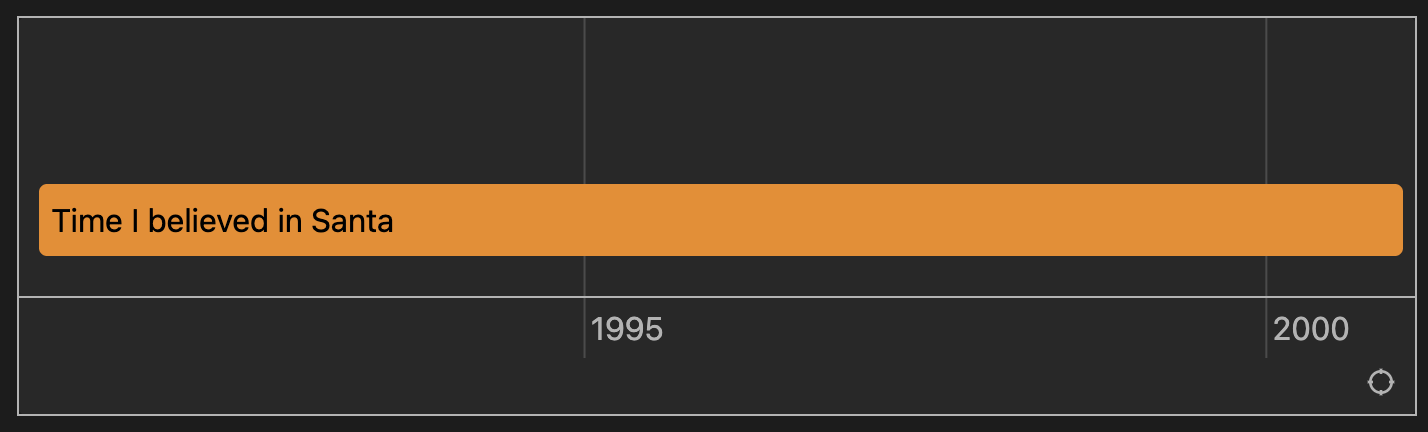
A date range is represented with a tilde (~) between the start and end dates.
Syntax
- [Date~Date] Event Name
Example
```chronos
- [1991~2001] Time I believed in Santa
```
Events with descriptions
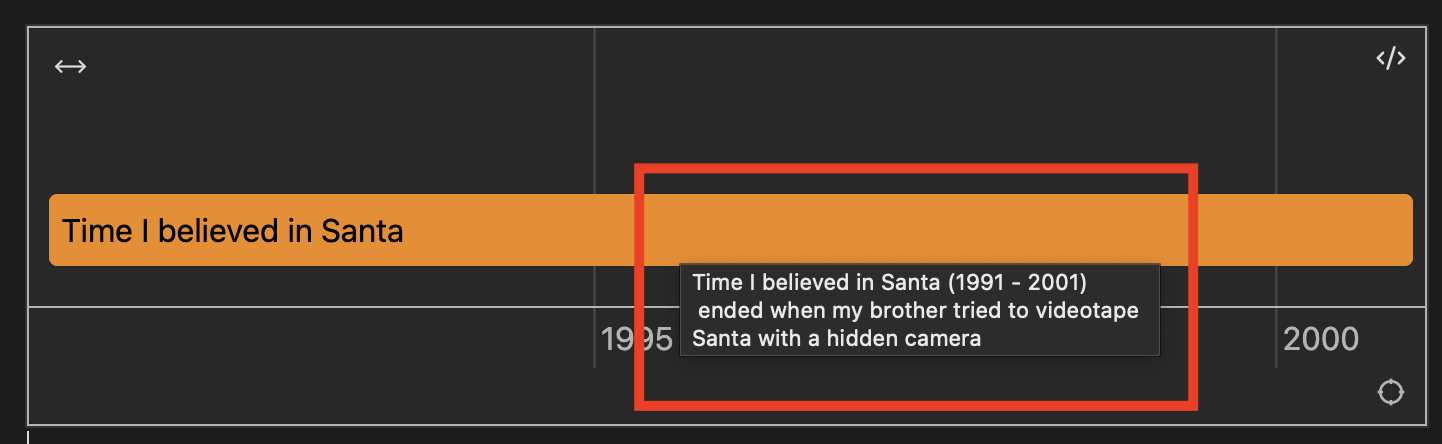
You can add additional information to an event by adding a pipe | after the Event name. This text will appear in a popup when you hover over an event.
Example
```chronos
- [1991~2001] Time I believed in Santa | ended when my brother tried to videotape Santa with a hidden camera
```
Periods @
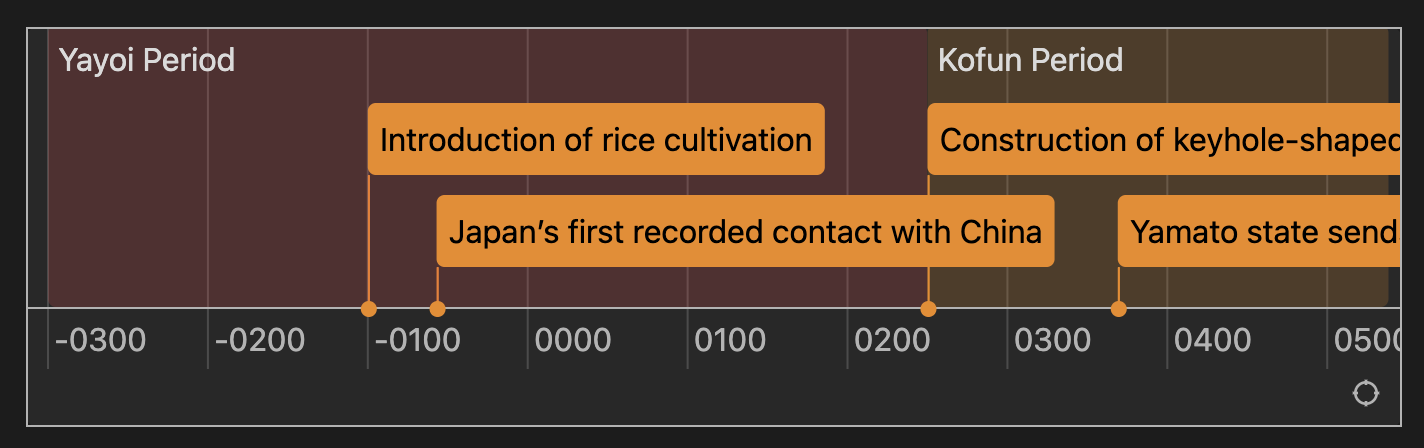
Periods are spans of time displayed with a semi-transparent background. Periods must be a range with a start and end date. Period Name is optional
@ [Date~Date] Period Name
Example
```chronos
@ [-300~250] #red Yayoi Period
- [-100] Introduction of rice cultivation
- [-57] Japan’s first recorded contact with China

@ [250~538] Kofun Period
- [250] Construction of keyhole-shaped kofun burial mounds begins
- [369] Yamato state sends envoys to Korea
```
Points *
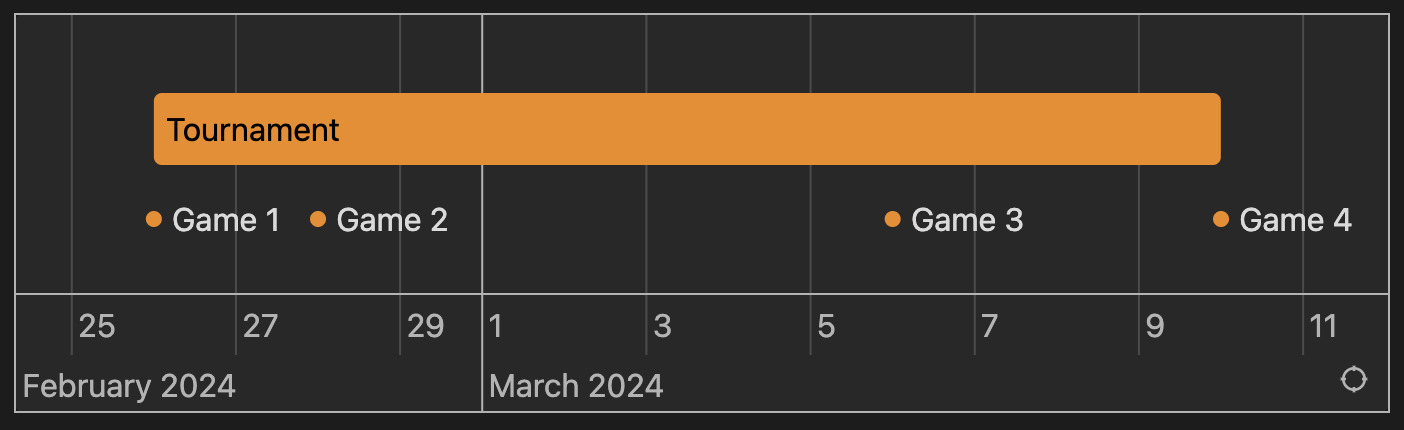
Points are ideal for marking a point in time. You can optionally add a Description that will appear on hover.
* [Date] Point Name | Description
```chronos
- [2024-02-26~2024-03-10] Tournament
* [2024-02-26] Game 1 | Austin
* [2024-02-28] Game 2 | Los Angeles
* [2024-03-06] Game 3 | Tokyo
* [2024-03-10] Game 4 | Jakarta
```
Markers =
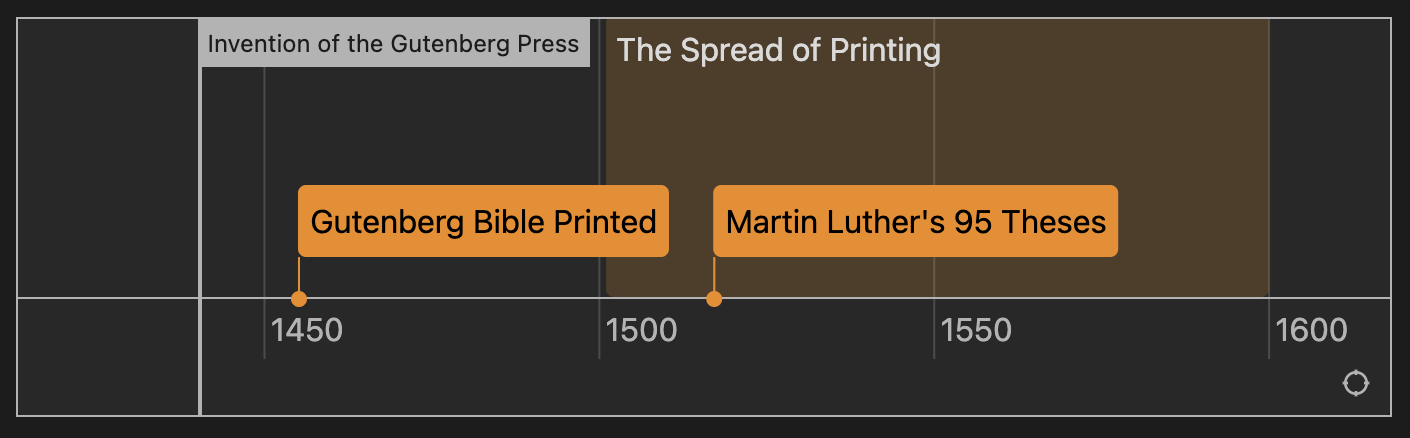
Markers can be used to highlight a key milestone in time. Markers must be a single date. Marker Name is optional
= [Date] Marker Name
Example
```chronos
= [1440] Invention of the Gutenberg Press

- [1455] Gutenberg Bible Printed
@ [1501~1600] The Spread of Printing
- [1517] Martin Luther's 95 Theses
```
Comments #
Chronos will ignore any line that starts with #. You can use this to write comments to yourself or block out items.
Example
```chronos
# this line is a comment, it will be ignored by chronos

- [1789~1799] French Revolution
- [1791~1804] Haitian Revolution
- [1776] American Declaration of Independence

# the event below will not render, since it has been commented out
# - [1939~1945] World War II
```
Flags >
You can add flags to your timeline by using the > symbol. Flags are parsed on separate lines, and are case insenstive. You can use multiple flags.
Example: The timeline below uses the NOTODAY and ORDERBY flags, to hide the current time marker and to order the stack of overlapping items by start date.
```chronos
> NOTODAY
> ORDERBY start

- [2022~2024] foo
- [2020~2024] bar
```
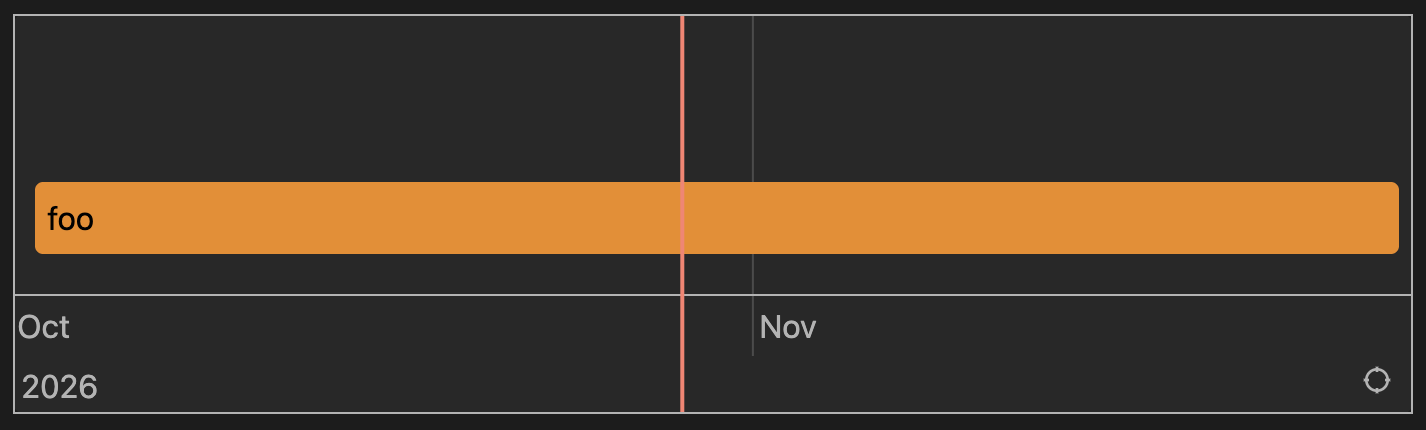
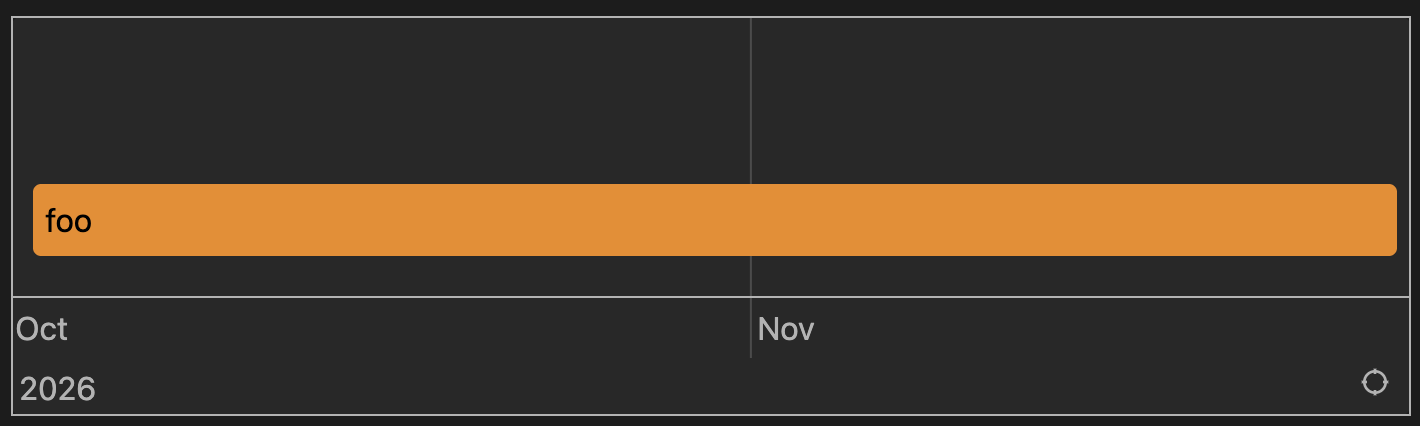
NOTODAY flag
Hide the vertical bar that marks today's time
> NOTODAY
(without flag)
```chronos
- [2026-10-02~2026-11-28] foo
```
(with flag)
```chronos
> NOTODAY
- [2026-10-02~2026-11-28] foo
```
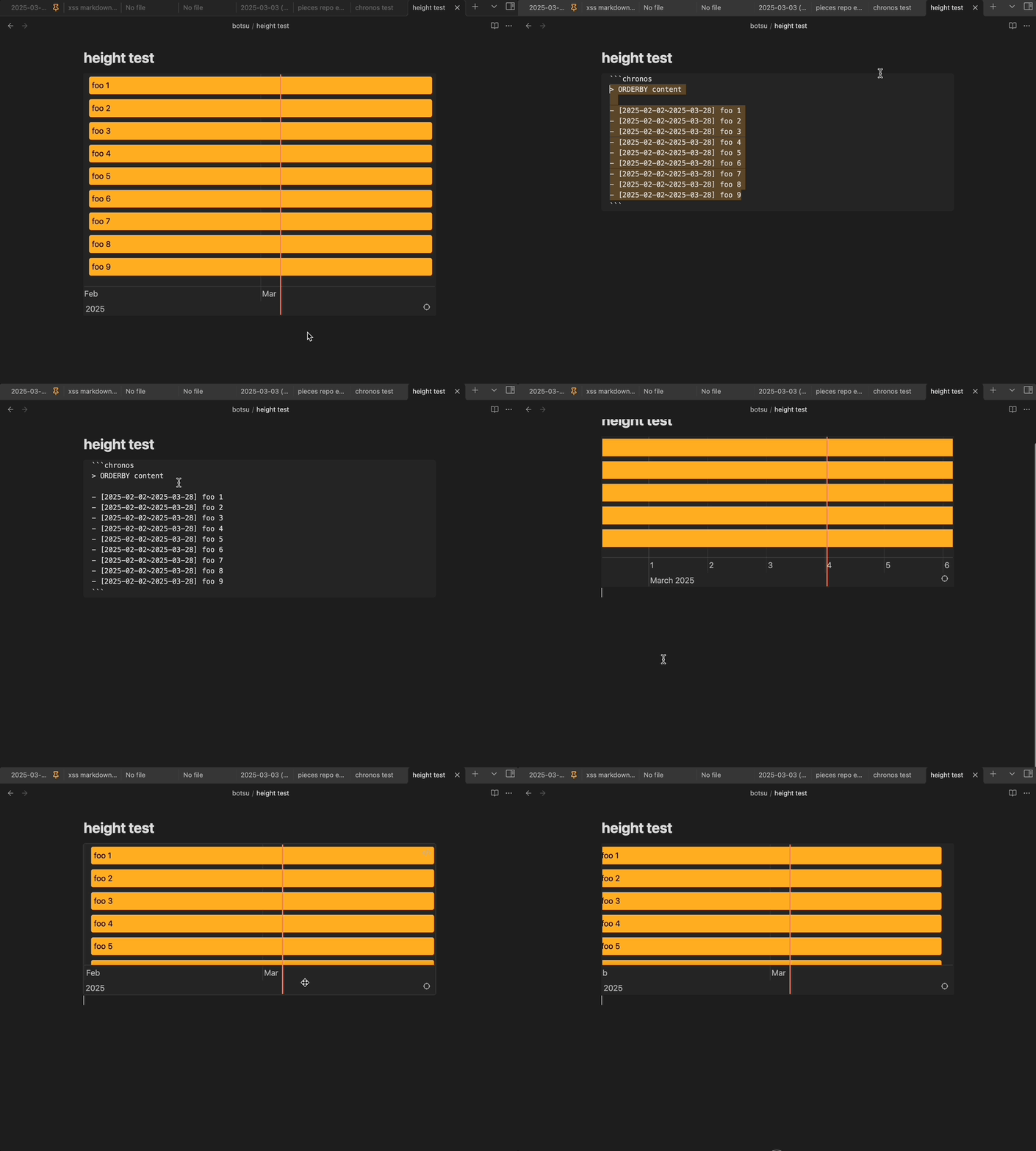
HEIGHT flag
Set a fixed height for a given timeline (in pixels).
If needed, you can vertically scroll your timleline by clicking and dragging up or down
> HEIGHT <number of pixels>
```chronos
> HEIGHT 300

- [2025-02-02~2025-03-28] foo 1
- [2025-02-02~2025-03-28] foo 2
- [2025-02-02~2025-03-28] foo 3
- [2025-02-02~2025-03-28] foo 4
- [2025-02-02~2025-03-28] foo 5
- [2025-02-02~2025-03-28] foo 6
- [2025-02-02~2025-03-28] foo 7
- [2025-02-02~2025-03-28] foo 8
- [2025-02-02~2025-03-28] foo 9
```
ORDERBY flag
By default, Chronos ordering is set by the stacking of the elements in the timeline.
The ORDERBY flag can be used to specify an ordering
[!WARNING]
Ordering can make the timeline laggy when there are many items. Use with precaution
> ORDERBY start|-content
- You can use any of these fields:
start|end|content|color|description.- Start date | end date | item label content | color | item description
- You can stack them by joining them with a pipe
|to add another sorting level. - You can prepend a dash
-to any of the fields to order in descending order on this field.
Example
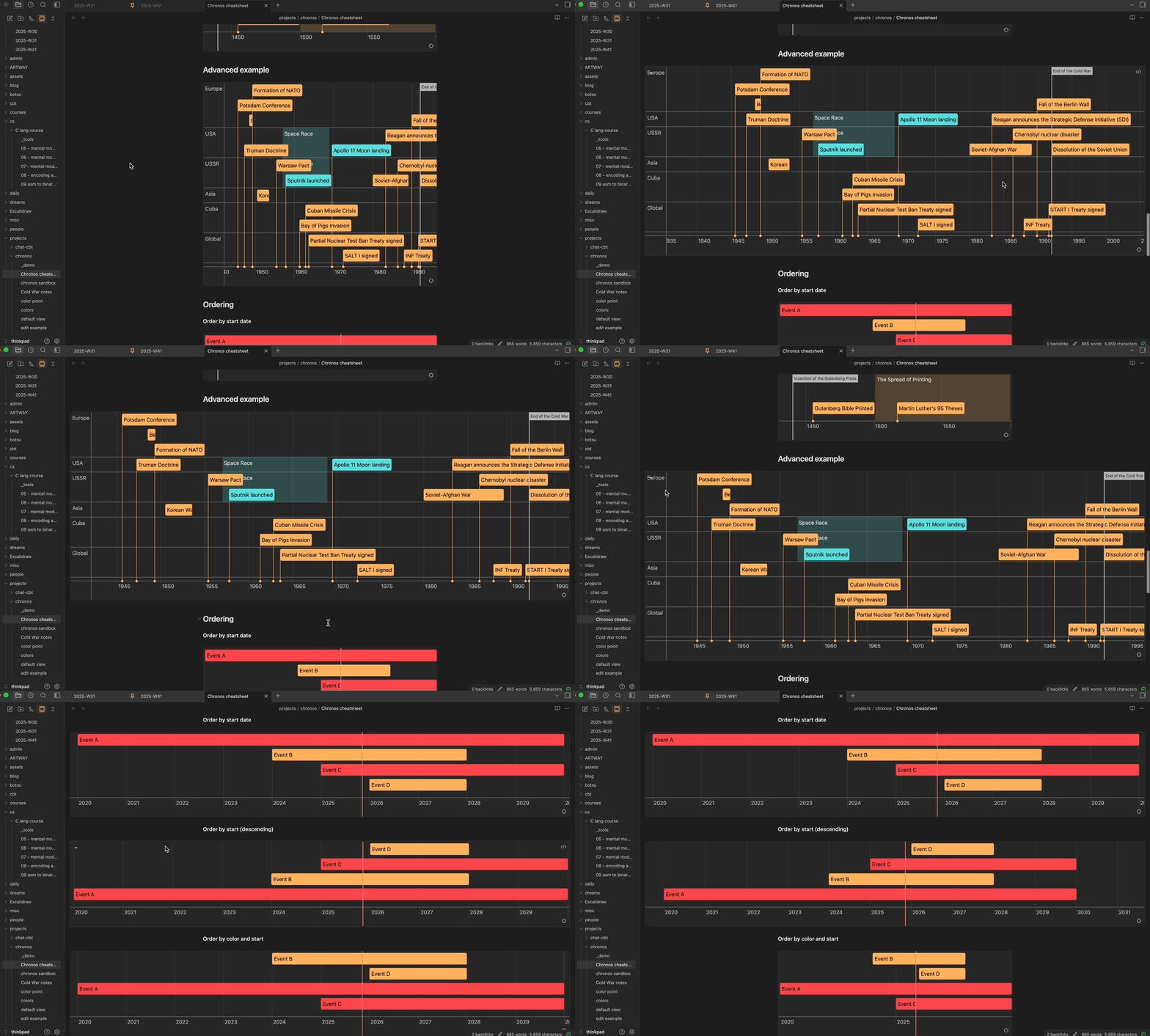
Order by start date
```chronos
> ORDERBY start

- [2026~2028] Event D
- [2024~2028] Event B
- [2025~2030] #red Event C
- [2020~2030] #red  Event A
```
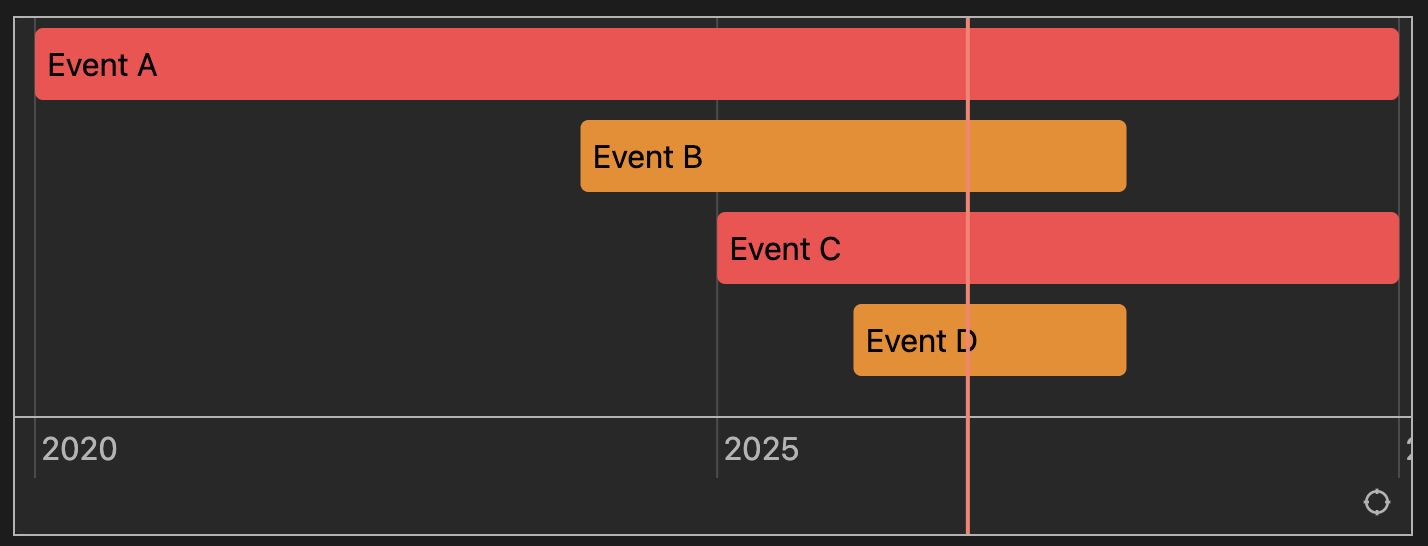
Order by color and start
```chronos
> ORDERBY color|start

- [2026~2028] Event D
- [2024~2028] Event B
- [2025~2030] #red Event C
- [2020~2030] #red  Event A
```
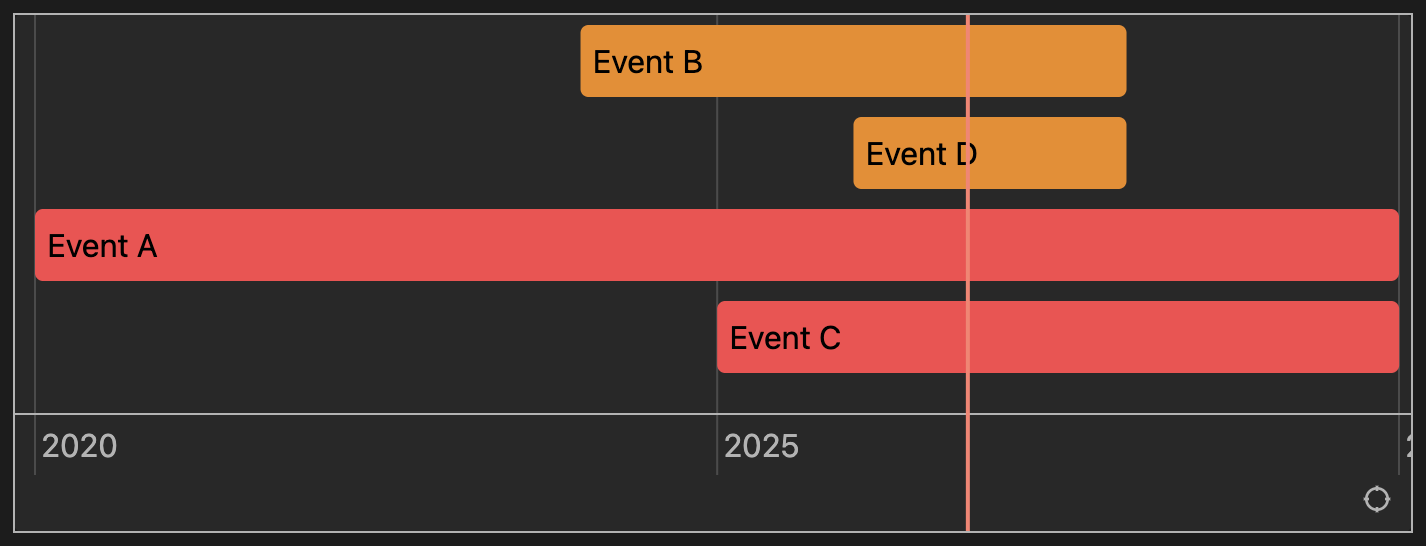
DEFAULTVIEW flag
Use the > DEFAULTVIEW start|end flag to specify default start and end dates for your timeline's initial load. You can use YYYY-MM-DD timestamps for the start and end date, with the minimum requirement being YYYY.
> DEFAULTVIEW  -3000|3000

- [2024] AGI
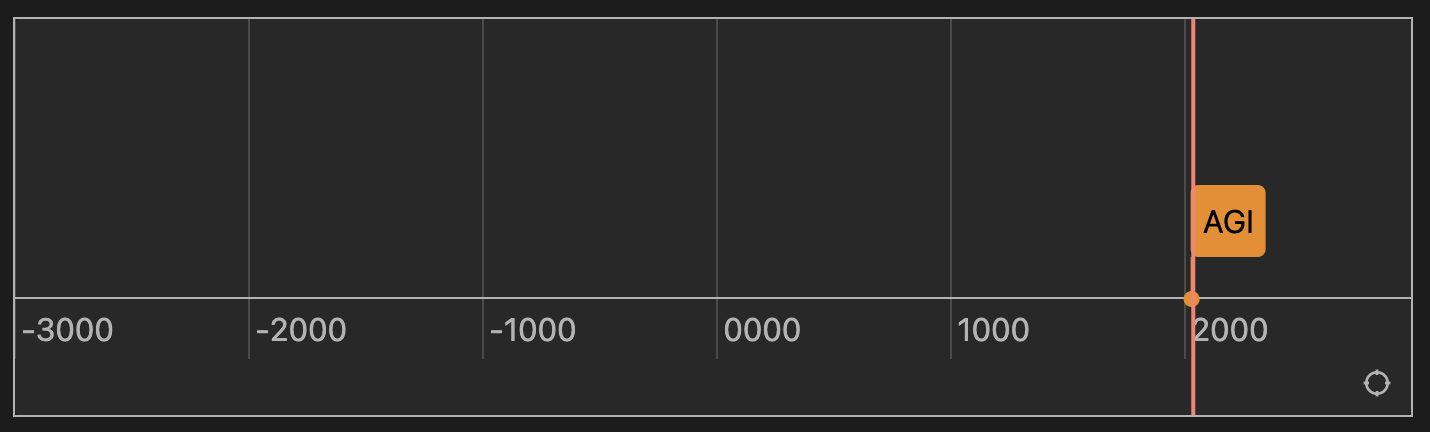
GAP flag
Set the gap between items, in pixels. One number applies to both directions. Use horizontal|vertical to set them separately, and leave one side empty to keep its default (10 for both).
> GAP 10|30

- [2020~2022] Event A
- [2021~2024] #red Event B
- [2023~2025] #blue Event C
Variants: > GAP 20, > GAP |30 (vertical only), > GAP 20| (horizontal only).
AXIS flag
Choose where the time axis is drawn: top or bottom (default).
> AXIS top

- [2020~2022] Event A
- [2021~2024] #red Event B
Display setting flags
These flags override your plugin settings for a single timeline. Precedence is: library defaults < plugin settings < flags in the timeline.
| Flag | Effect |
|---|---|
> ROUNDED / > NOROUNDED |
Round the ends of period ranges on / off |
> TRANSLUCENT / > NOTRANSLUCENT |
Borderless, semi-transparent items on / off |
> OVERFLOWTITLES / > NOOVERFLOWTITLES |
Let long range titles run past the range box on / off (on by default) |
> UTC / > NOUTC |
Interpret dates as UTC / local time |
> ALIGN left|center|right |
Align item text |
If a flag and its NO version both appear, the later line wins.
ROUNDED flag
Round the ends of ranged items. Use > NOROUNDED to turn off rounding when it's enabled in your settings.
> ROUNDED

- [2020~2024] Rounded range
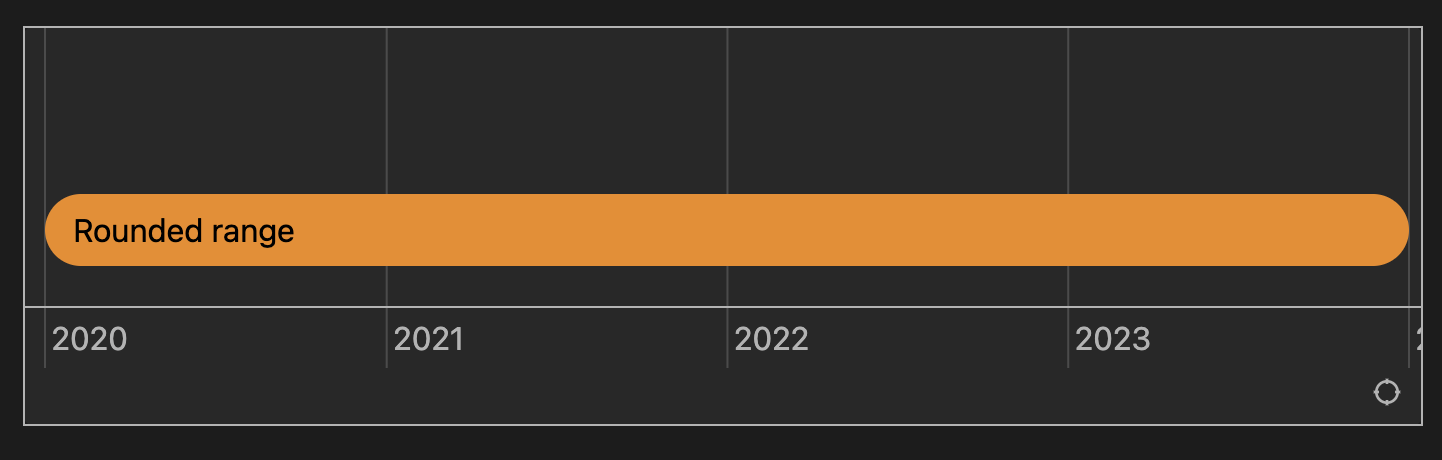
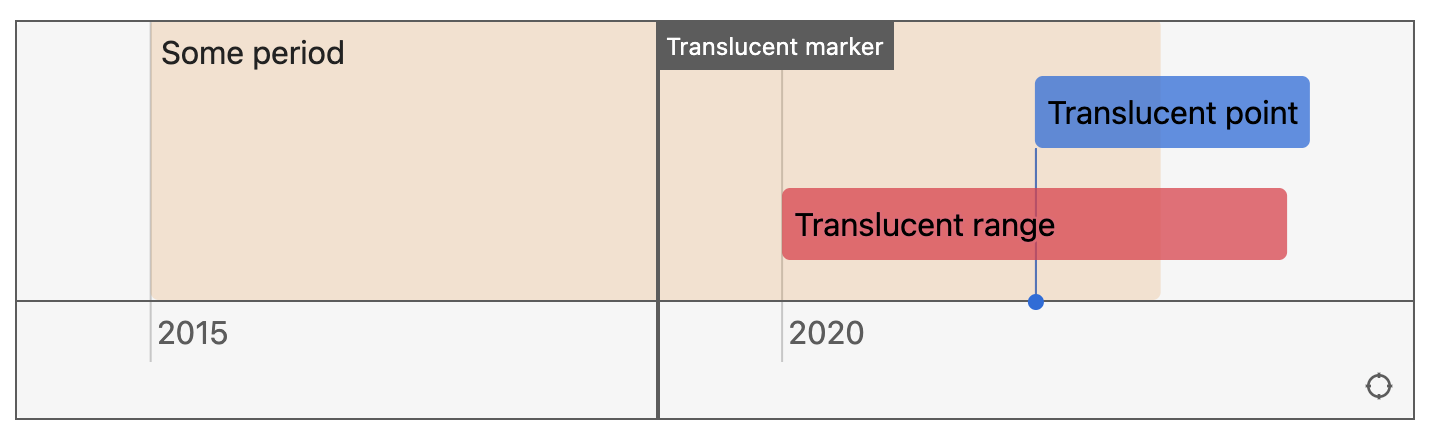
TRANSLUCENT flag
Render items as borderless, semi-transparent boxes. Use > NOTRANSLUCENT to render solid items. Recommended if you use Light theme to soften the contrast, but also looks great in Dark theme!
> TRANSLUCENT

@ [2015~2023] Some period
= [2019] Translucent marker
- [2020~2024] #red Translucent range
- [2022] #blue Translucent point
OVERFLOWTITLES flag
Long range titles run past the edge of the range box by default. Use > NOOVERFLOWTITLES to clip titles to the box, or > OVERFLOWTITLES to turn overflow back on when it's disabled in your settings.
- [2020~2021] A very long range title this is!
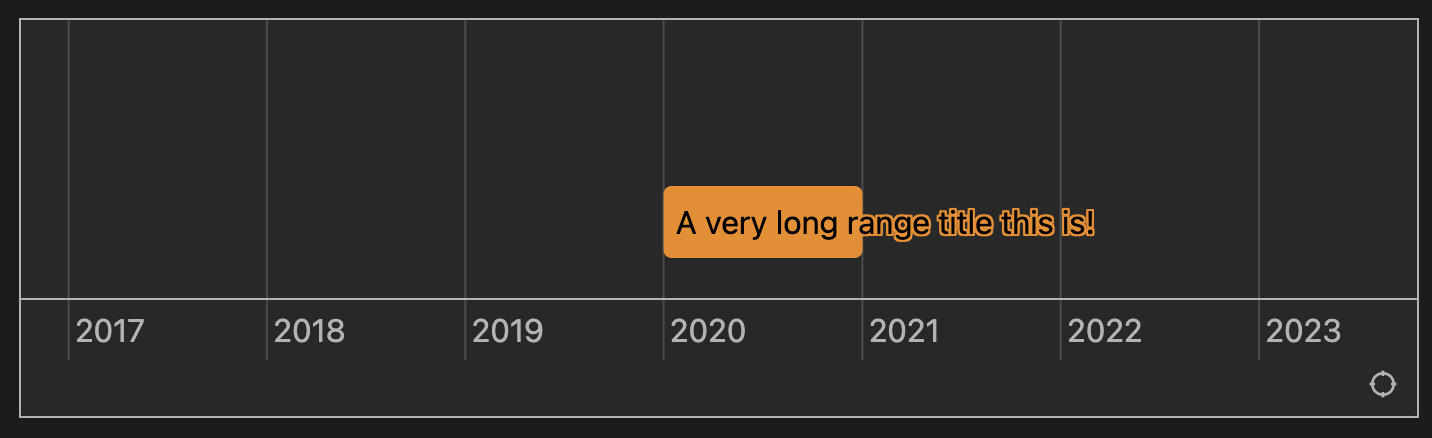
> NOOVERFLOWTITLES

- [2020~2021] A very long range title that would otherwise run past the box

UTC flag
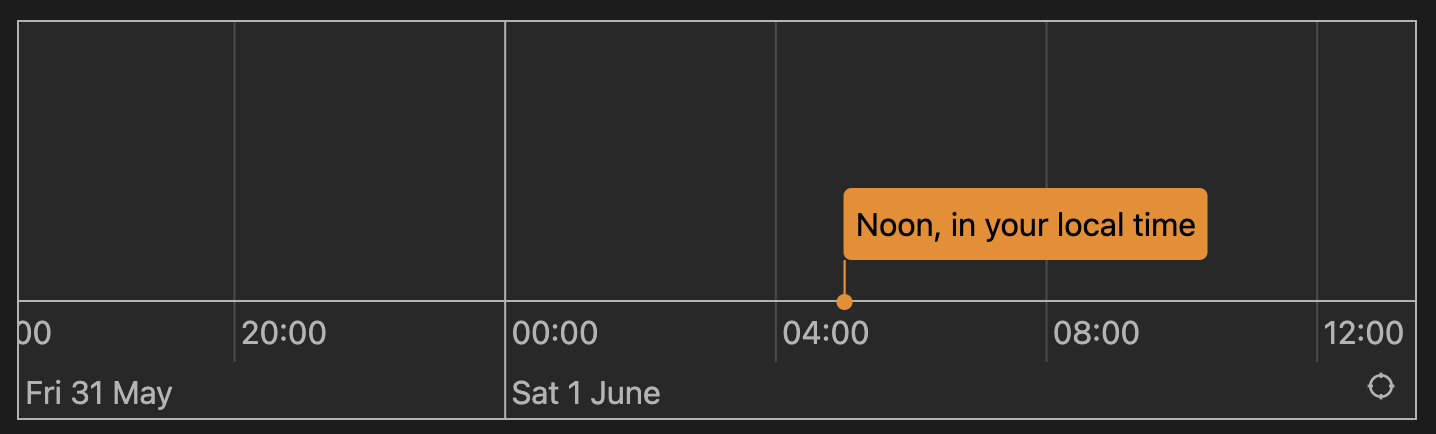
Interpret dates as UTC (> UTC) or as your system's local time (> NOUTC).
> NOUTC

- [2024-06-01T12:00] Noon, in your local time
ALIGN flag
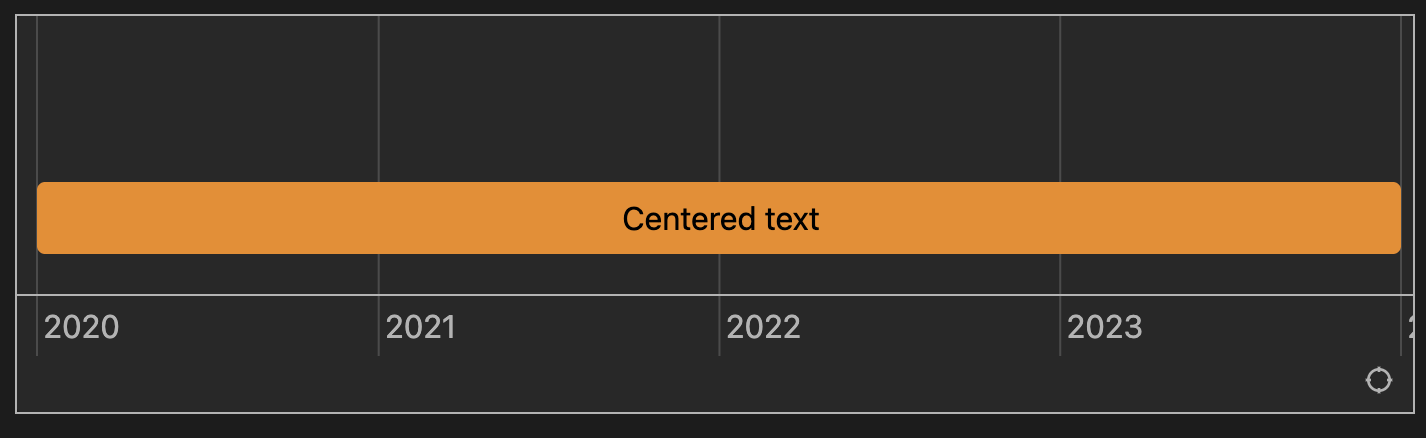
Align item text: left, center or right.
> ALIGN center

- [2020~2024] Centered text
Combining display flags
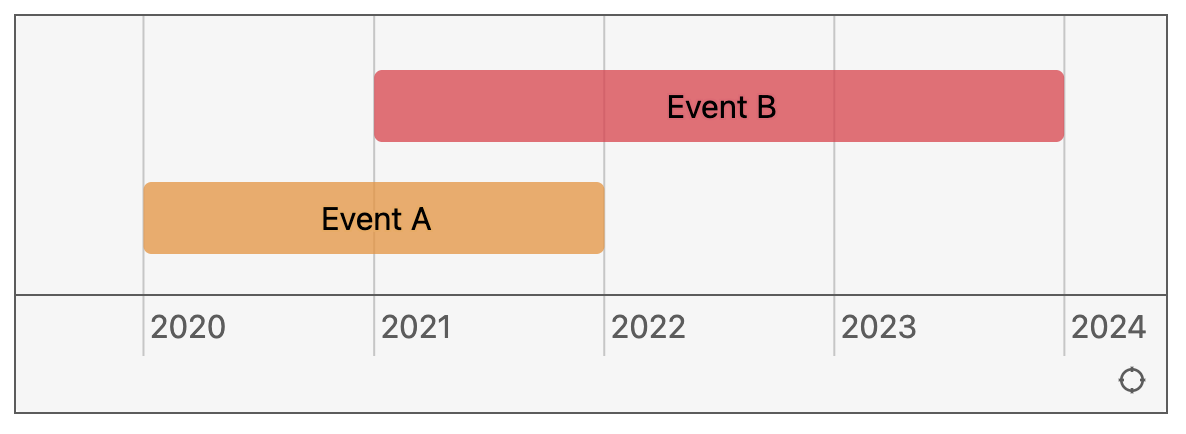
> TRANSLUCENT
> NOROUNDED
> ALIGN center

- [2020~2022] Event A
- [2021~2024] #red Event B
Modifiers
Modifiers #color and {Group} can be added to Events (-) and Periods (@) with the following optional syntax.
- [Date-Date] #color {Group Name} Name | Description
The modifiers must go in this order: between Dates and Name, with color first if both color and group are used.
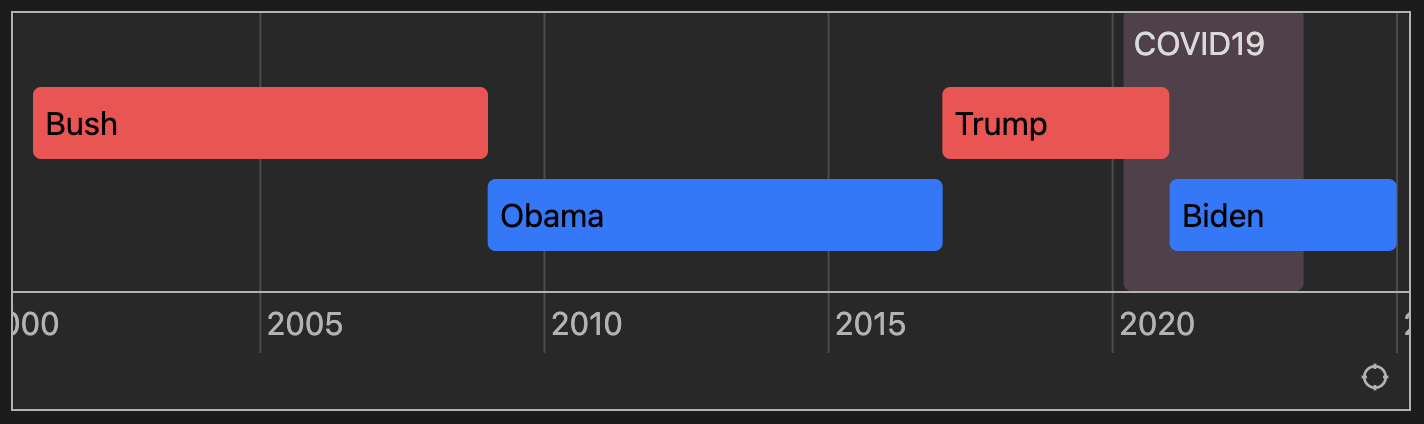
Colors #color
By default, Chronos matches your Obsidian theme color.
To give items a specific color, you can include an available color after the date: #red | #orange | #yellow | #green | #blue | purple | #pink | #cyan
Example
```chronos
- [2001~2009] #red Bush
- [2009~2017] #blue Obama
- [2017~2021] #red Trump
- [2021~2025] #blue Biden

@ [2020-03-11~2023-05-11] #pink COVID19
```
Groups {}
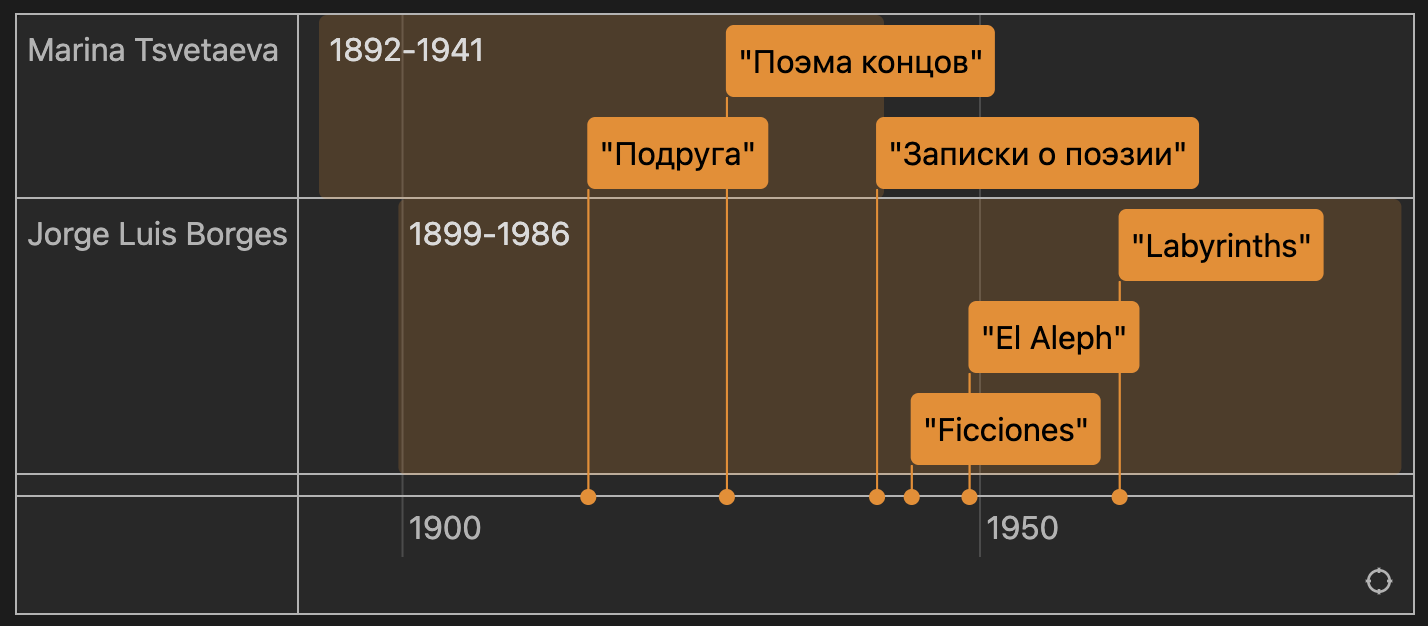
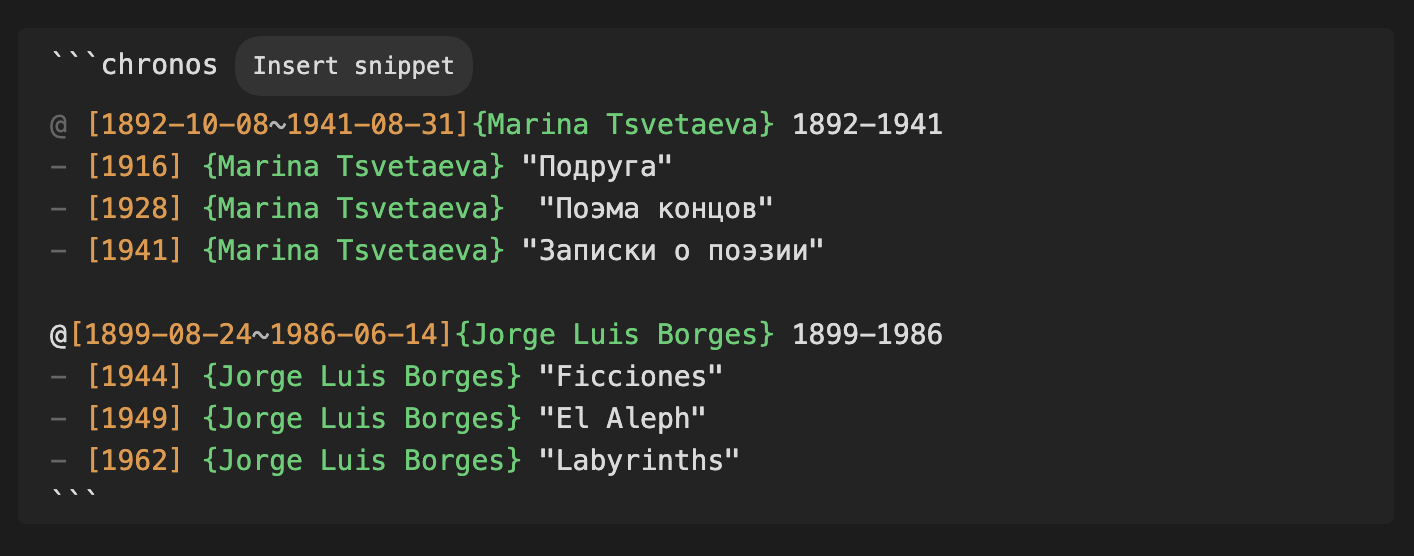
Events and Periods can be grouped into "swimlanes" by specifying a Group Name in curly brackets {} after the Date (or Color, if present). Group names are case sensitive and may contain spaces.
The order of items does not matter, but the example below lumps items together by group for human legibility.
Example
```chronos
@ [1892-10-08~1941-08-31]{Marina Tsvetaeva} 1892-1941
- [1916] {Marina Tsvetaeva} "Подруга"
- [1928] {Marina Tsvetaeva}  "Поэма концов"
- [1941] {Marina Tsvetaeva} "Записки о поэзии"

@[1899-08-24~1986-06-14]{Jorge Luis Borges} 1899-1986
- [1944] {Jorge Luis Borges} "Ficciones"
- [1949] {Jorge Luis Borges} "El Aleph"
- [1962] {Jorge Luis Borges} "Labyrinths"
```
Advanced example
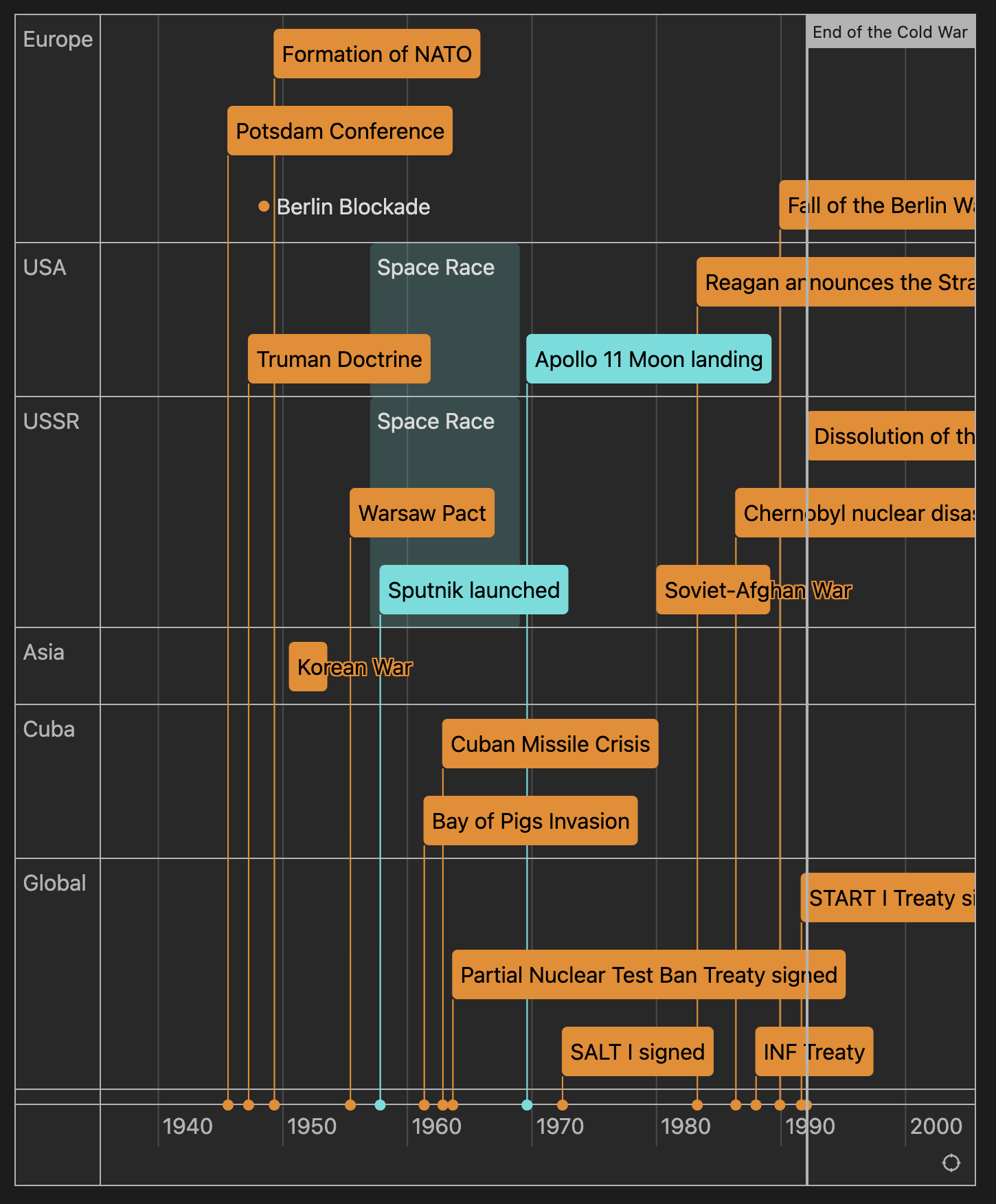
This example combines Events, Periods, Markers, Comments, Descriptions, Groups and Colors
```chronos
- [1945-07-17] {Europe} Potsdam Conference | where post-WWII Europe is divided
- [1947-03-12] {USA} Truman Doctrine | committing the U.S. to containing communism
* [1948-06-24] {Europe} Berlin Blockade | and Airlift in response to Soviet actions in Berlin
- [1949-04-04] {Europe} Formation of NATO

# Early Cold War

@ [1957~1969] #cyan {USSR} Space Race
@ [1957~1969] #cyan {USA} Space Race
- [1950-06-25~1953-07-27] {Asia} Korean War | between North and South Korea
- [1955-05-14] {USSR} Warsaw Pact | in response to NATO
- [1957-10-04] #cyan {USSR} Sputnik launched | initiating the Space Race
- [1961-04-17] {Cuba} Bay of Pigs Invasion | in Cuba

# Height of Tensions

- [1962-10-16] {Cuba} Cuban Missile Crisis | a peak confrontation between the U.S. and USSR
- [1963-08-05] {Global} Partial Nuclear Test Ban Treaty signed
- [1969-07-20] #cyan {USA} Apollo 11 Moon landing | U.S. wins the Space Race
- [1972-05-26] {Global} SALT I signed | first Strategic Arms Limitation Treaty

# Détente Period

- [1979-12-24~1989-02-15] {USSR} Soviet-Afghan War | straining Soviet resources
- [1983-03-23] {USA} Reagan announces the Strategic Defense Initiative (SDI)
- [1986-04-26] {USSR} Chernobyl nuclear disaster
- [1987-12-08] {Global} INF Treaty | signed, eliminating intermediate-range nuclear missiles

# Late Cold War

- [1989-11-09] {Europe} Fall of the Berlin Wall | symbolizing the end of Cold War tensions
- [1991-07-31] {Global} START I Treaty signed | further arms reduction
- [1991-12-26] {USSR} Dissolution of the Soviet Union | officially ending the Cold War

= [1991-12-26] End of the Cold War

```
Obsidian Bases view
By adding frontmatter properties to your notes or using formulas, you can easily make dynamic and highly portable timelines! Any note with at least a start property will show. Properties marked with ? below are optional
start           (Chronos date)
end?            (Chronos date)
content?        (Optional alternate title - defaults to note name)
type?           (event|point|period|marker - defaults to point, or event if there is an end date or start ends with ~ for ongoing)
color?          (red|orange|yellow|green|blue|purple|pink|cyan|<hexcode>)
description?
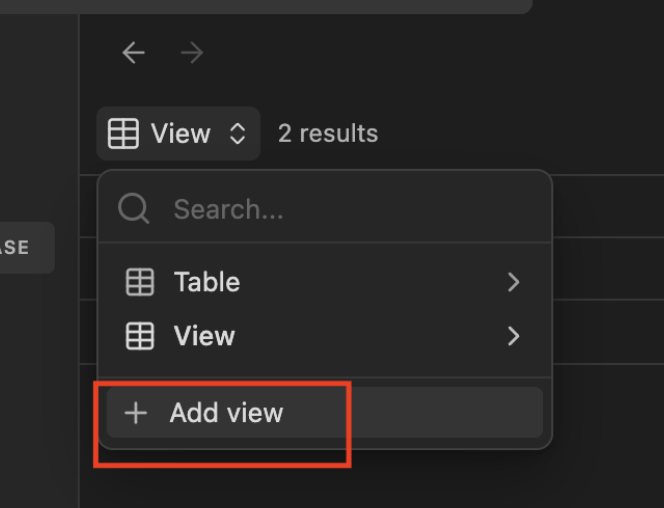
Bases: Adding a Chronos Timelines Bases view
- From a base, click "Add View" from the Views dropdown
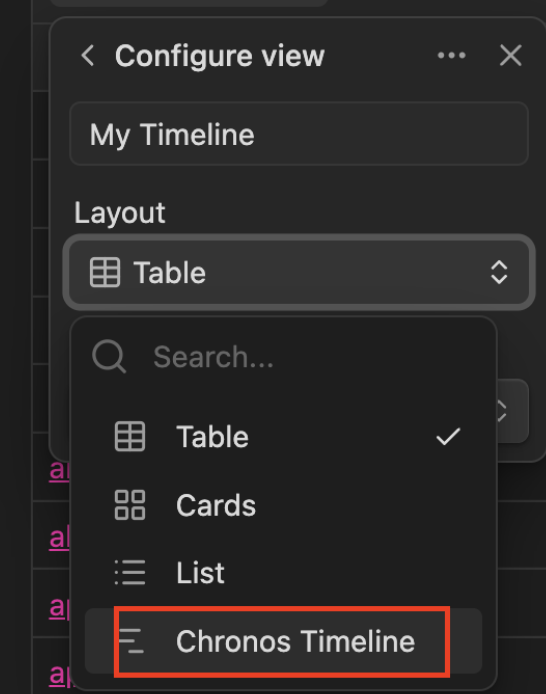
- Select "Chronos Timeline" view and give a custom name
- (Optional) Select filters for notes (ex: all notes in a given folder, all notes with tag
#history, etc...)
Note: Only notes with
startproperty will show up in the timeline - other notes will be ignored.
Dragging your Bases view into the right or left side panels allows you to watch your timeline update in realtime as you add notes and update properties.
You can also create properties with Formulas. See Formulas section.
Bases: Adding properties to notes
At the very top of a note you'd like to see in the Chronos Timeline Bases view, add properties by typing --- on the first line (Figure A). Or by using the properties wizard if it is already showing (Figure B).
Figure A
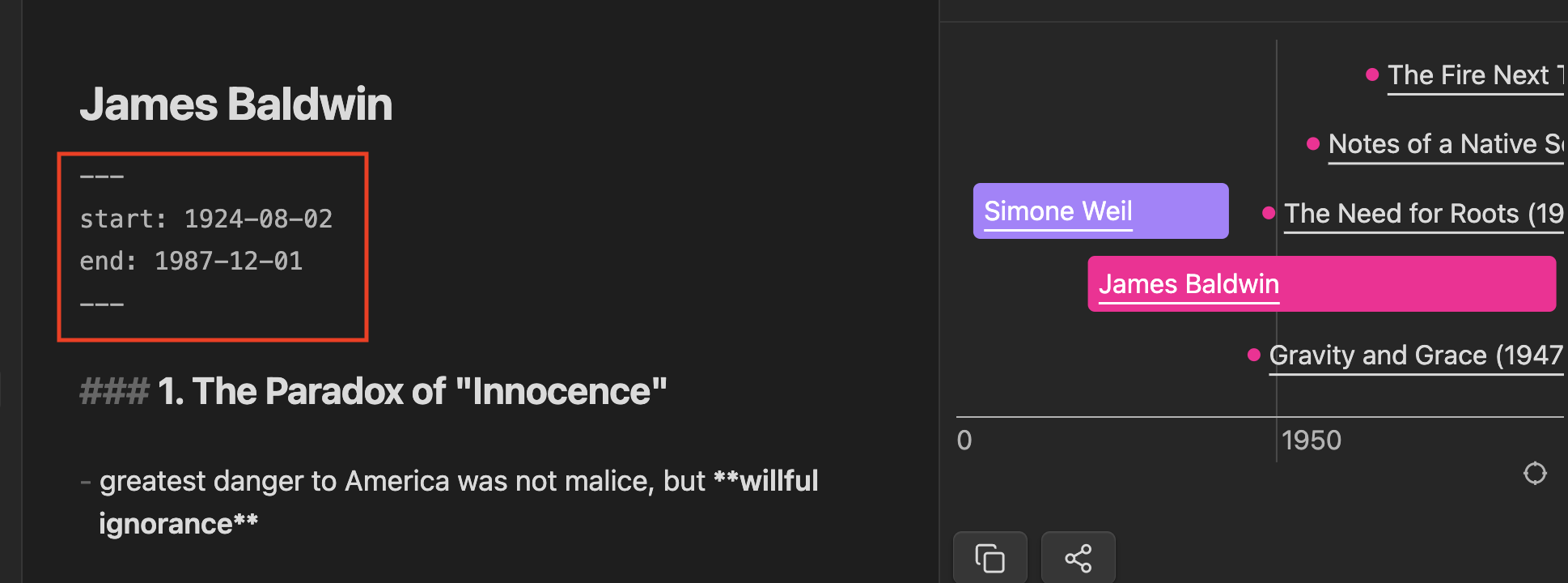
Figure B
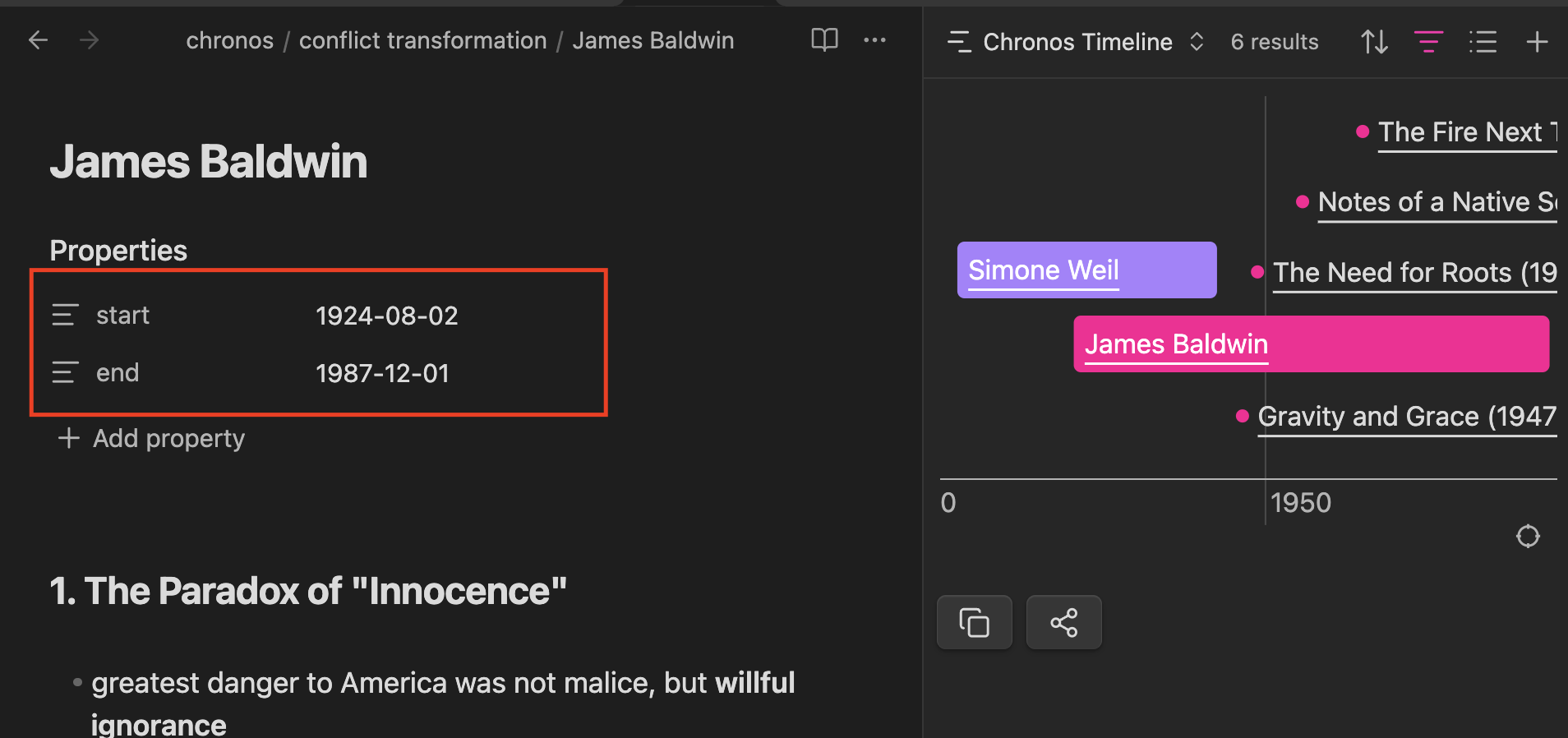
start           (Chronos date)
end?            (Chronos date)
content?        (Optional alternate item title - defaults to note name)
type?           (Option: event|point|period|marker - defaults to point, or event if there is an end date or start ends with ~ for ongoing)
color?          (Optional: red|orange|yellow|green|blue|purple|pink|cyan|<hexcode>)
description?    (Optional)
Bases: Date formats and invalid values
start and end accept Chronos dates (YYYY, YYYY-MM, YYYY-MM-DD, optionally with THH:mm[:ss]). The Bases view also converts these common formats automatically:
| Written in note | Read as |
|---|---|
2026/10/14, 2026.10.14, 2026-1-4 |
2026-10-14, 2026-10-14, 2026-01-04 |
2026-10-14 12:00 |
2026-10-14T12:00 |
2026-10-14T12:00:00.000Z |
2026-10-14T12:00:00 (time zone is ignored) |
Oct 14, 2026, 14 October 2026 |
2026-10-14 |
14/10/2026, 10/14/2026 |
2026-10-14 |
Ambiguous dates like 03/04/2026 (day or month first?) are not guessed. Use YYYY-MM-DD for those.
Notes with a value that can't be read (for example start: abc, or an end before the start) are skipped so the rest of your timeline still shows. A collapsed warning above the timeline shows how many notes were skipped. Expand it to see each note (click to open it) and the value that couldn't be read. It updates automatically as you fix your notes.
Bases: Changing property sources
You can change the default sources for item properties using the Item Property Sources configuration.
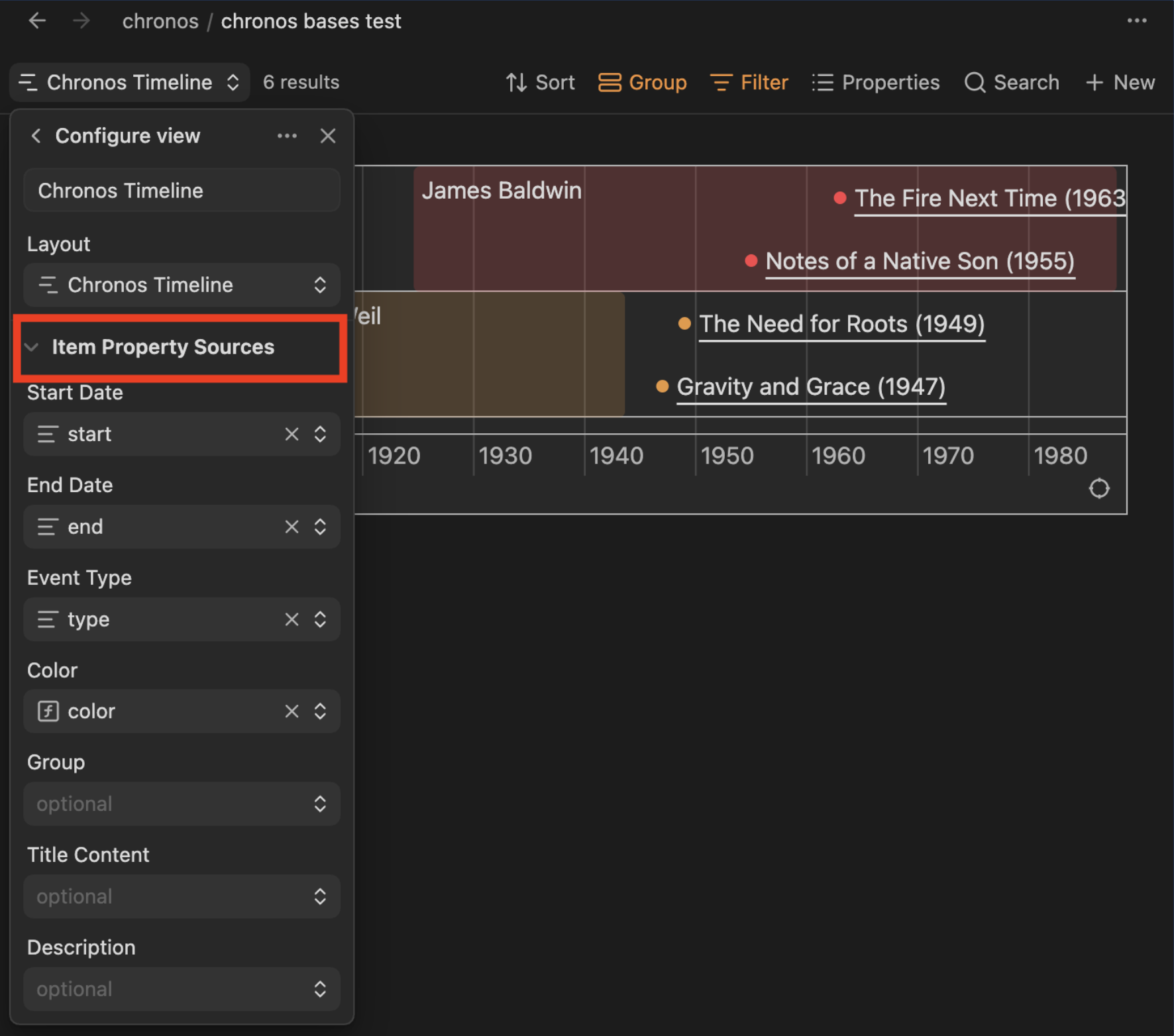
You can configure the default property names for new Bases views in the plugin Settings.
Bases: Using Formulas to calculate custom values for properties
You can use Obsidian's formulas feature in Bases to implement custom logic for your properties.
This can be useful for creating custom logic for coloring or item types, for example.
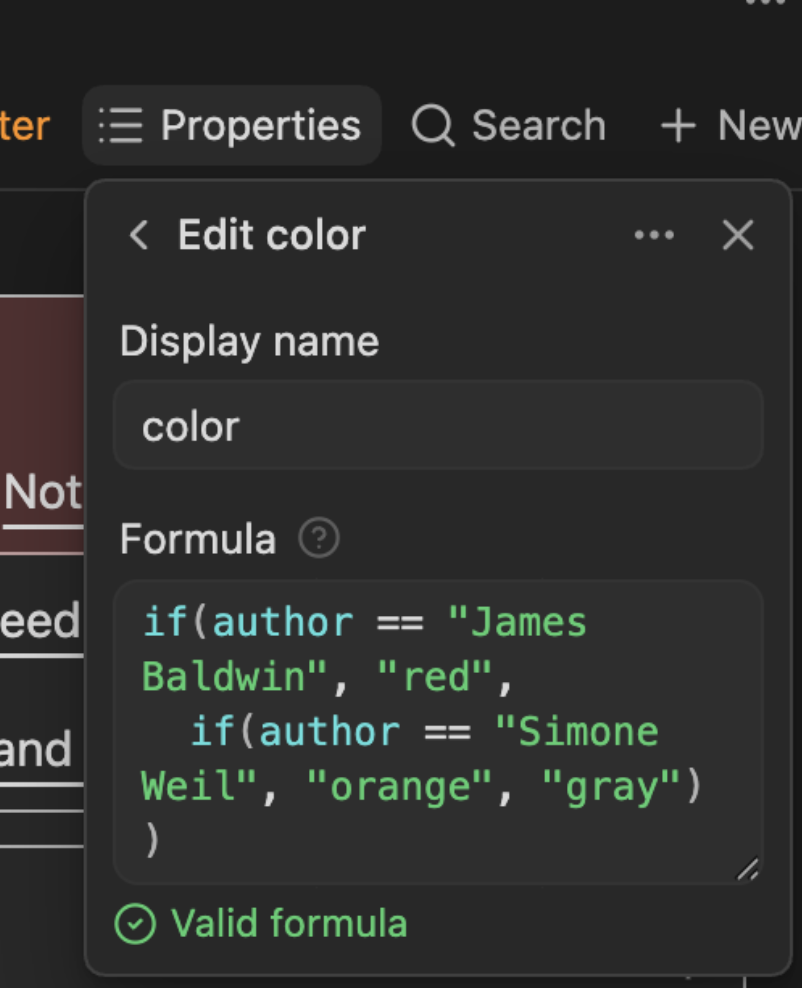
See Obsidian's Formula documentation for more.
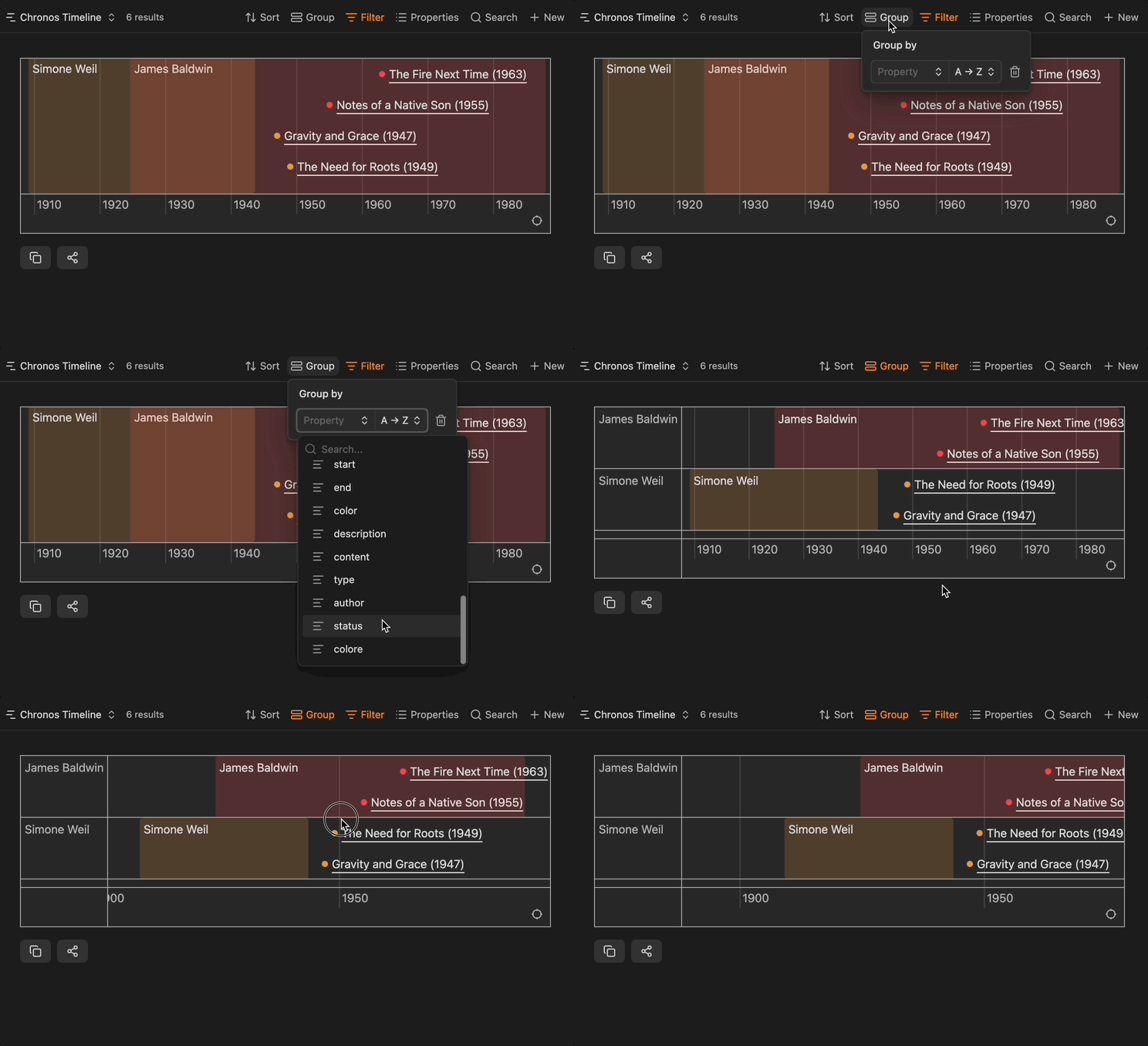
Bases: Grouping
Groups in the Chronos Timeline view can be created in one of two ways:
- Via the Bases "Group by" query selector under "Sort"
- By adding a
groupvalue in the Item Property Sources
With the "Group by" query selector, you can control the order in which the groups appear, but note that Chronos will force the "no group" row to the bottom of the view regardless of group sorting options.
The group property will be used if no "Group by" query selector is chosen.
Using the "Group by" method
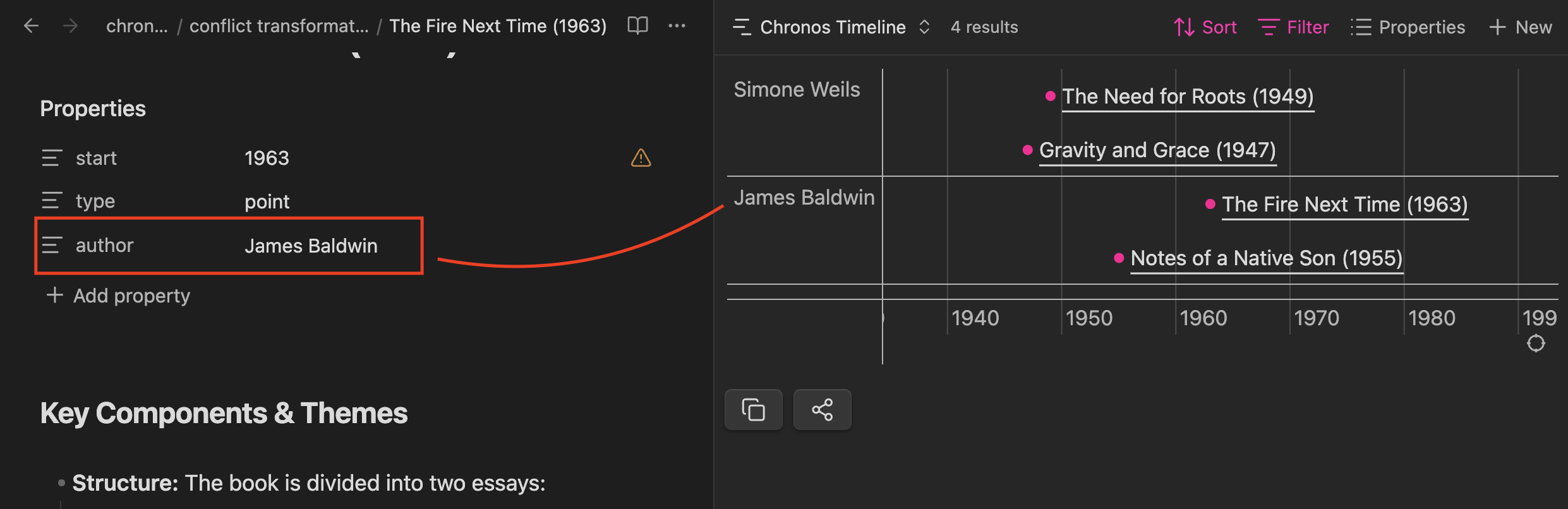
You can use Formulas for more flexible grouping. For a trivial example, let's say you wanted to group items by some property like author:
- (Optional) Add a filter to target specific items. In this example, we target a folder.
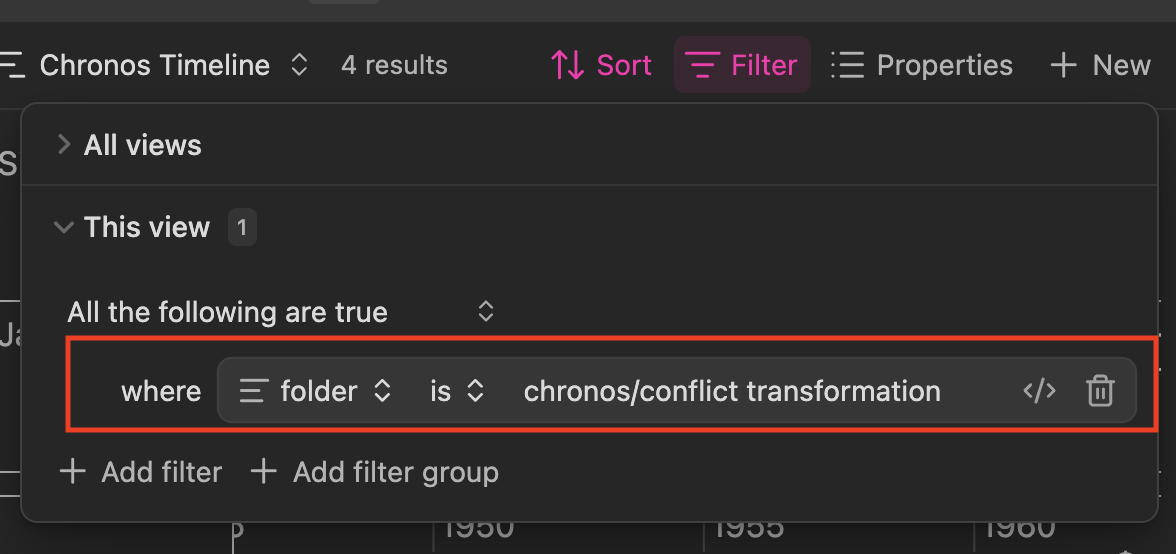
- Select a property to group by in the "Sort" menu, such as
authorin this example
Using manual "group" property on notes
You can also add a property named group (or custom name in settings) to notes directly, and select that property in your Chornos Timelines view for Bases.
Using formulas for grouping
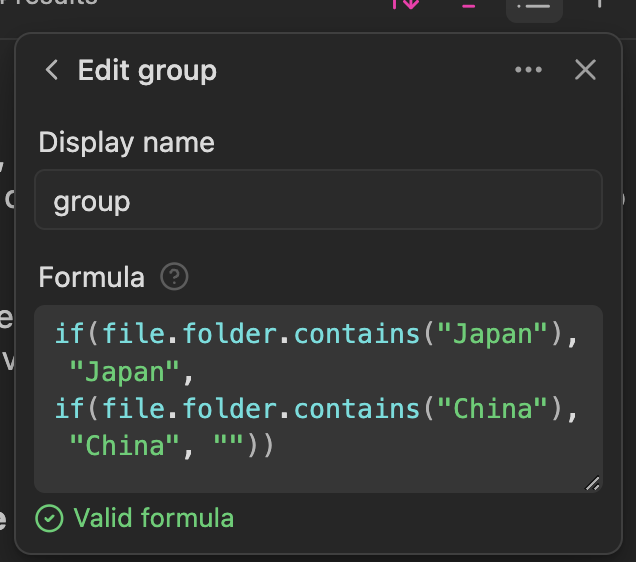
Formulas also allow for more complex logic to determine groups. For example, if you want to assign group labels based on the folder a given note is in:
if(file.folder.contains("Japan"), "Japan", if(file.folder.contains("China"), "China", ""))
See Obsidian's Formula documentation for more.
Bases: Interacting with the Chronos Timeline view
The Chronos Timeline Bases view automatically links to the related note.
You can hover on an item and hold Cmd/Ctrl to see a note preview before jumping.
You can also Copy the generated markdown (to paste in chronos blocks in your notes), or Copy a shareable link (stripped of wikilinks) that you can send your friends online
Note linking (beta)
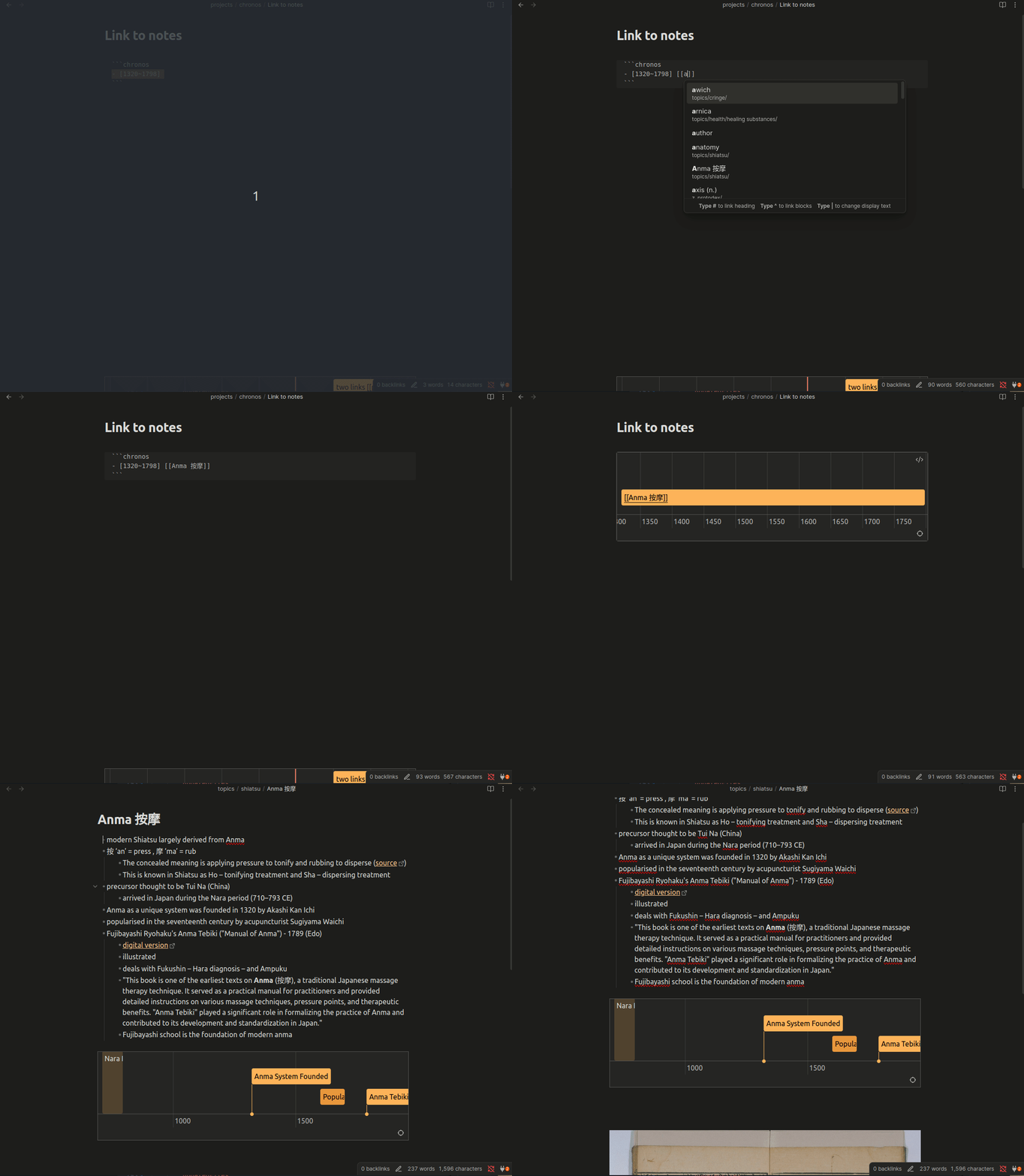
Link to other notes in your vault by adding a wiki link to either the item name or description.
Type [[ then a few characters in your note title for Obsidan to auto-suggest a path to insert. Chronos will link to the first link provided in an item.
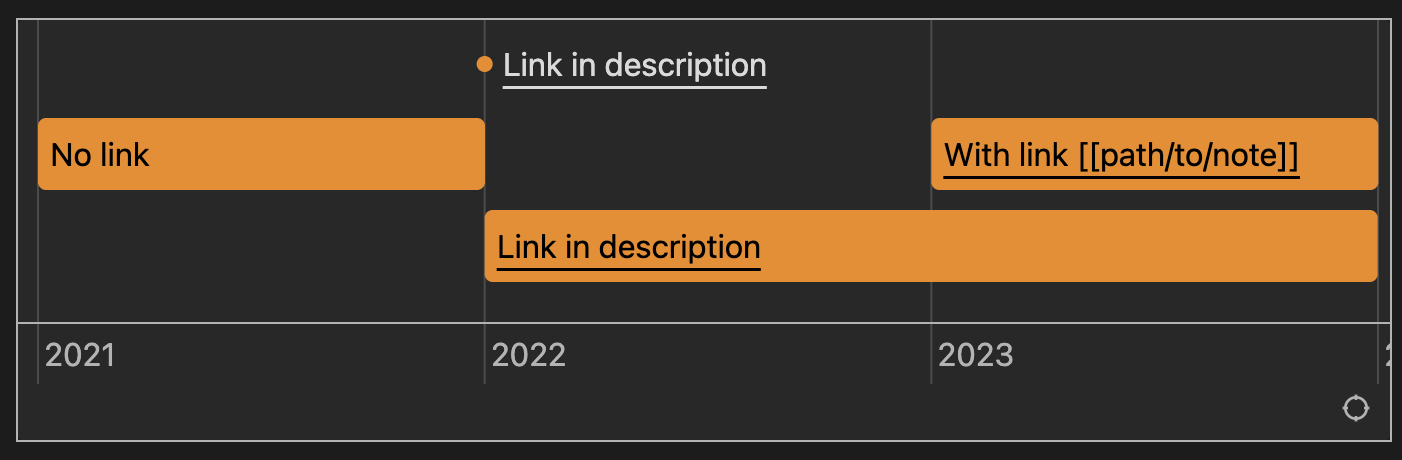
Works for Event, Point and Period type items. You can add a link to the item name (link path visible), or the description (link path hidden). Items with a link will appear underlined.
Left-click: open link in current tab Middle-click or Shift + click: open link in new tab
Examples:
```chronos
- [2021~2022] No link
- [2023~2024] With link [[path/to/note]]
- [2022~2024] Link in description | [[path/to/note]]
@ [2020~2021] Period with link | [[path/to/note]]
* [2022] Link in description | [[path/to/note]]
```
You can link directly to a section heading in a note by adding #section name to the path
```chronos
- [2021~2022] My long note | [[path/to/note#section]]
```
Note: Moving or renaming a note SOMETIMES updates links in your Chronos timeline blocks, if the path is used for the link (not an alias, ex: just
noteinstead ofpath/to/note). I'm working on updating alias links safely
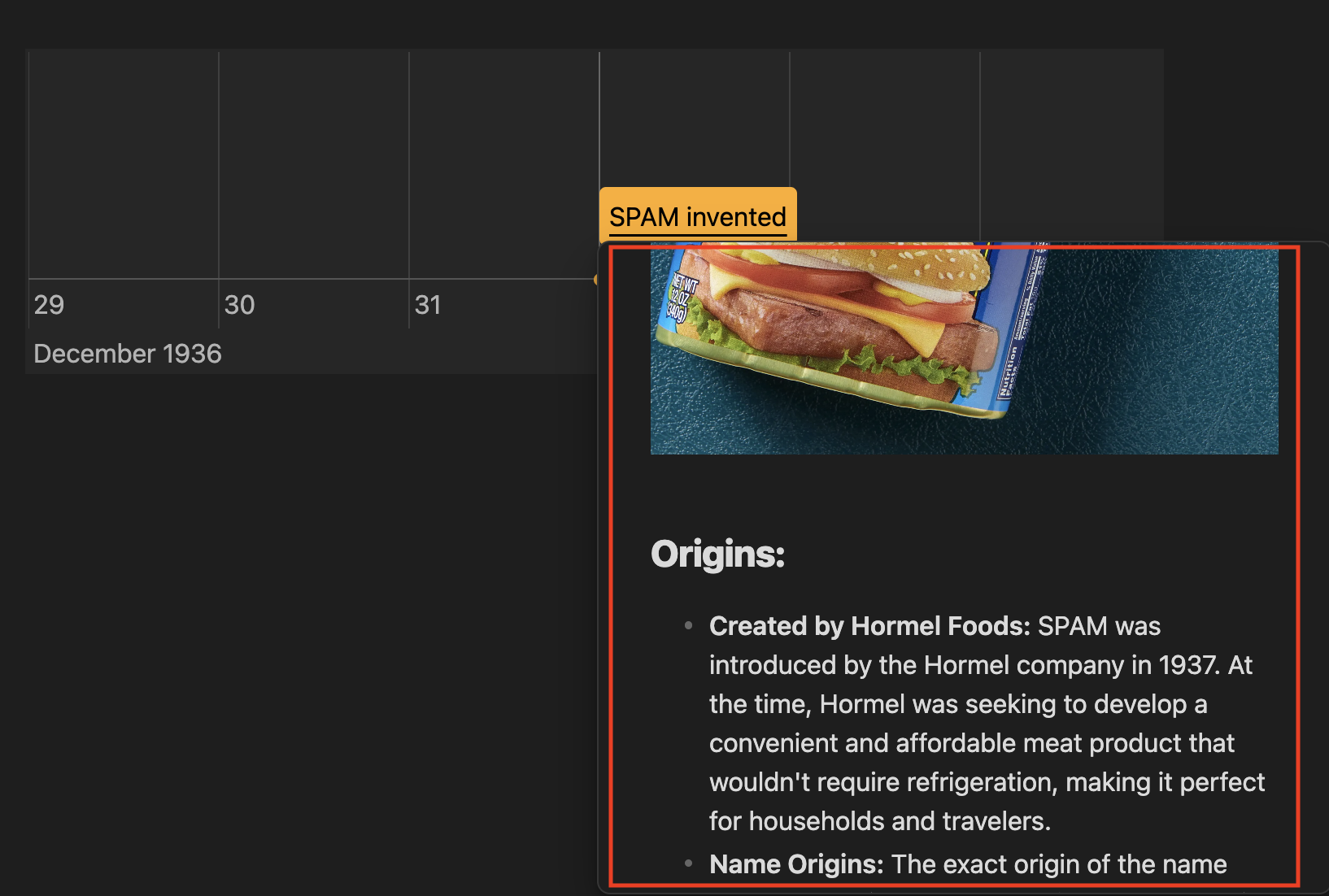
Previewing links
While hovering a timeline item with a link, press Control or Command to show a preview of the linked note
Actions
Edit
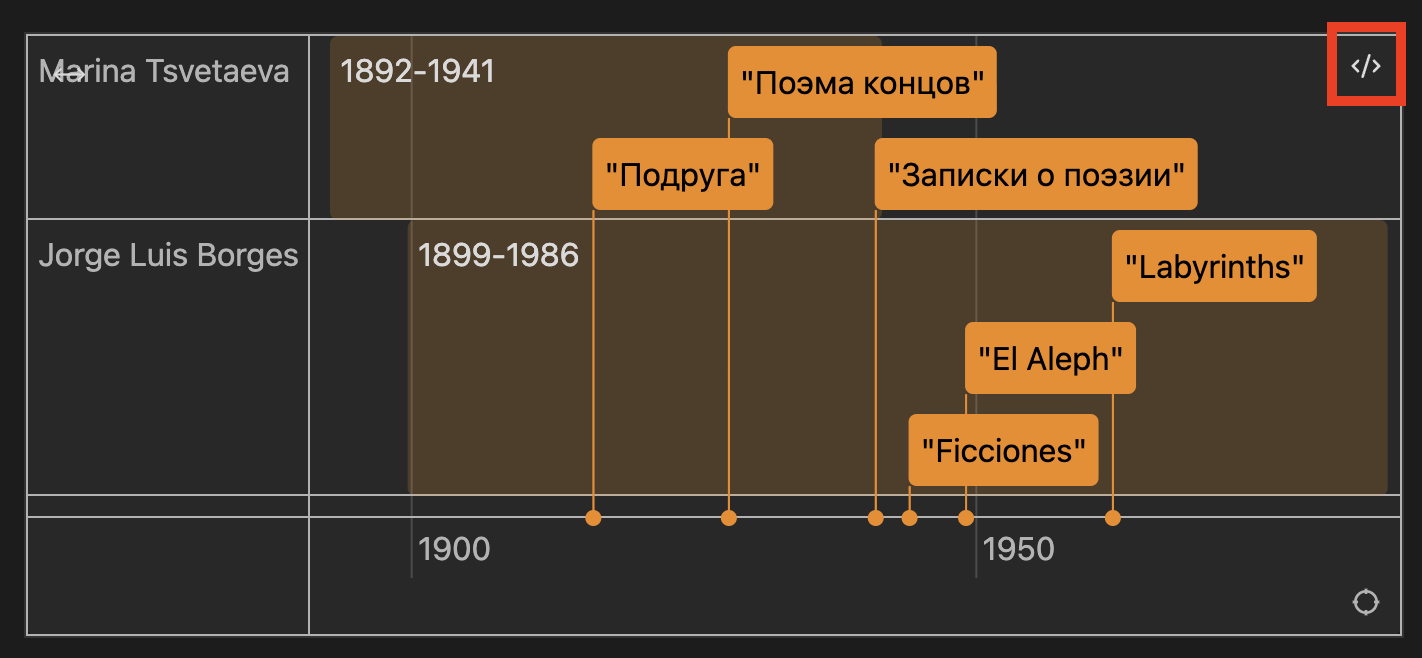
To enter Edit mode an update your chronos Markdown, hover over the timeline and click the code icon that appears in the upper-right corner.
Refit
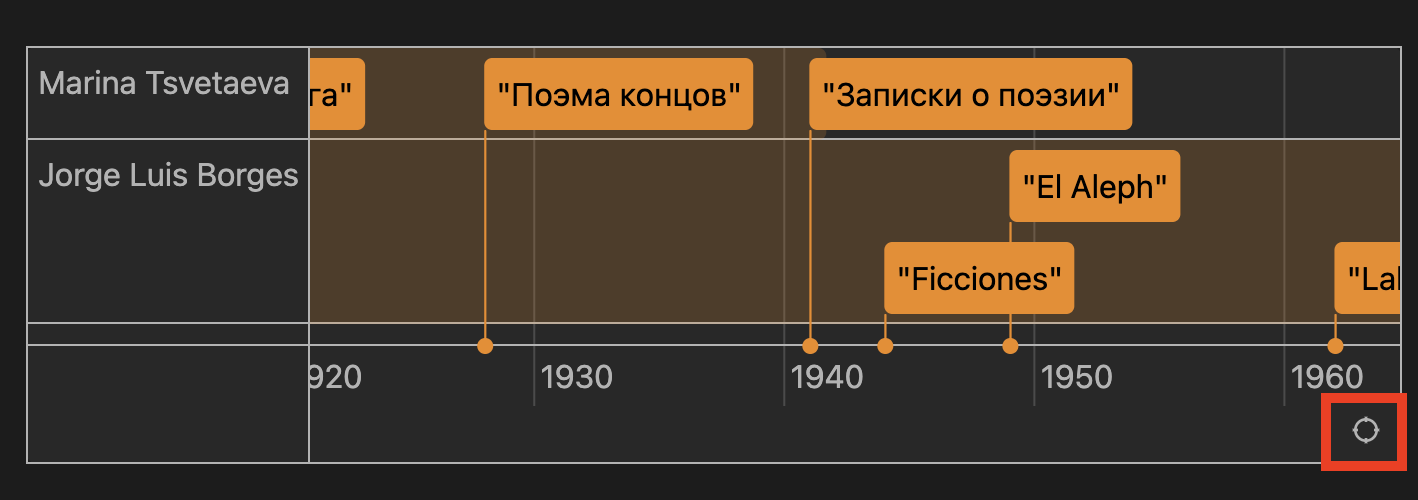
Click the Refit button (crosshairs icon) in the lower-right corner to adjust all items to fit within the view window.
Toggle width
Hover on the timeline and click the width toggle in the upper left to expand the timeline to the width of your editor.
Display settings
These options are in the Chronos plugin settings, under Display, and apply immediately to open timelines (in notes and in Bases views).
- Round endcaps on ranges (default off): adds rounding to ranged events to make start and end clear.
- Overflow range titles (default on): long range-event titles continue past the edge of the range box, with an outline for readability. Turn off to clip titles to the box.
- Time axis position (default bottom): draw the time axis at the top or bottom. An
> AXISflag in a timeline overrides it. - Item gap (default 20 horizontal, 20 vertical): spacing in pixels between items. A
> GAPflag in a timeline overrides it. - Translucent items (default off): renders all timeline items as semi-transparent.
- Use UTC time (recommended) (default on): interprets dates as UTC. If disabled, Chronos uses system time, which may shift historical events by a day. A
> UTCor> NOUTCflag in a timeline overrides it. - Item alignment (default left): aligns event boxes and item text left, center or right. An
> ALIGNflag in a timeline overrides it.
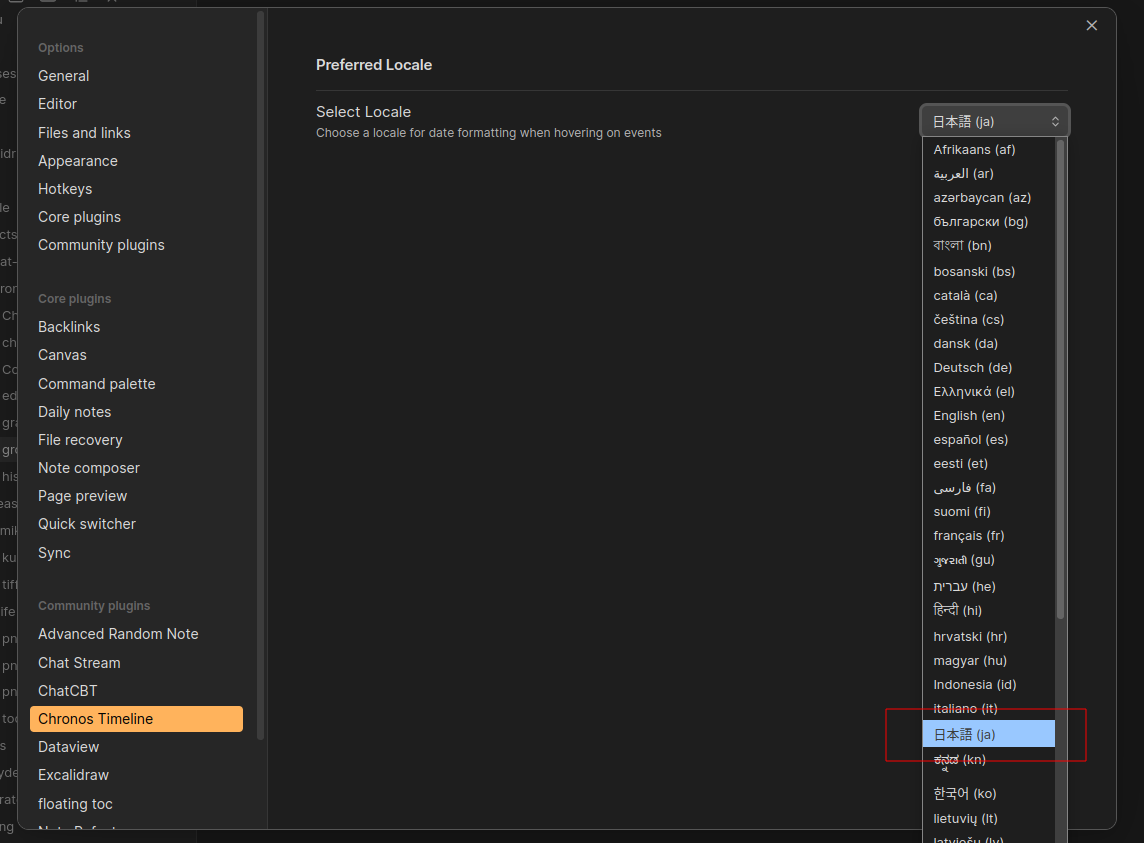
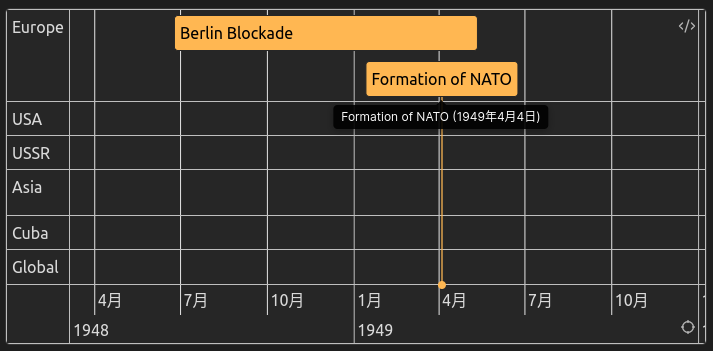
Localization
You can choose your preferred language for dates, from the Chronos Timeline plugin settings.
Available options depend on your system's language settings.