Canvas Markdown Side Editor
 shawnswu1k downloads
Open a Canvas card's linked Markdown file in a right-side editor pane with one click.
- Overview
- Scorecard
- Updates7
Edit Canvas Markdown cards from a side panel — live preview, autosave, and no zooming in and out of cramped cards.
Demo
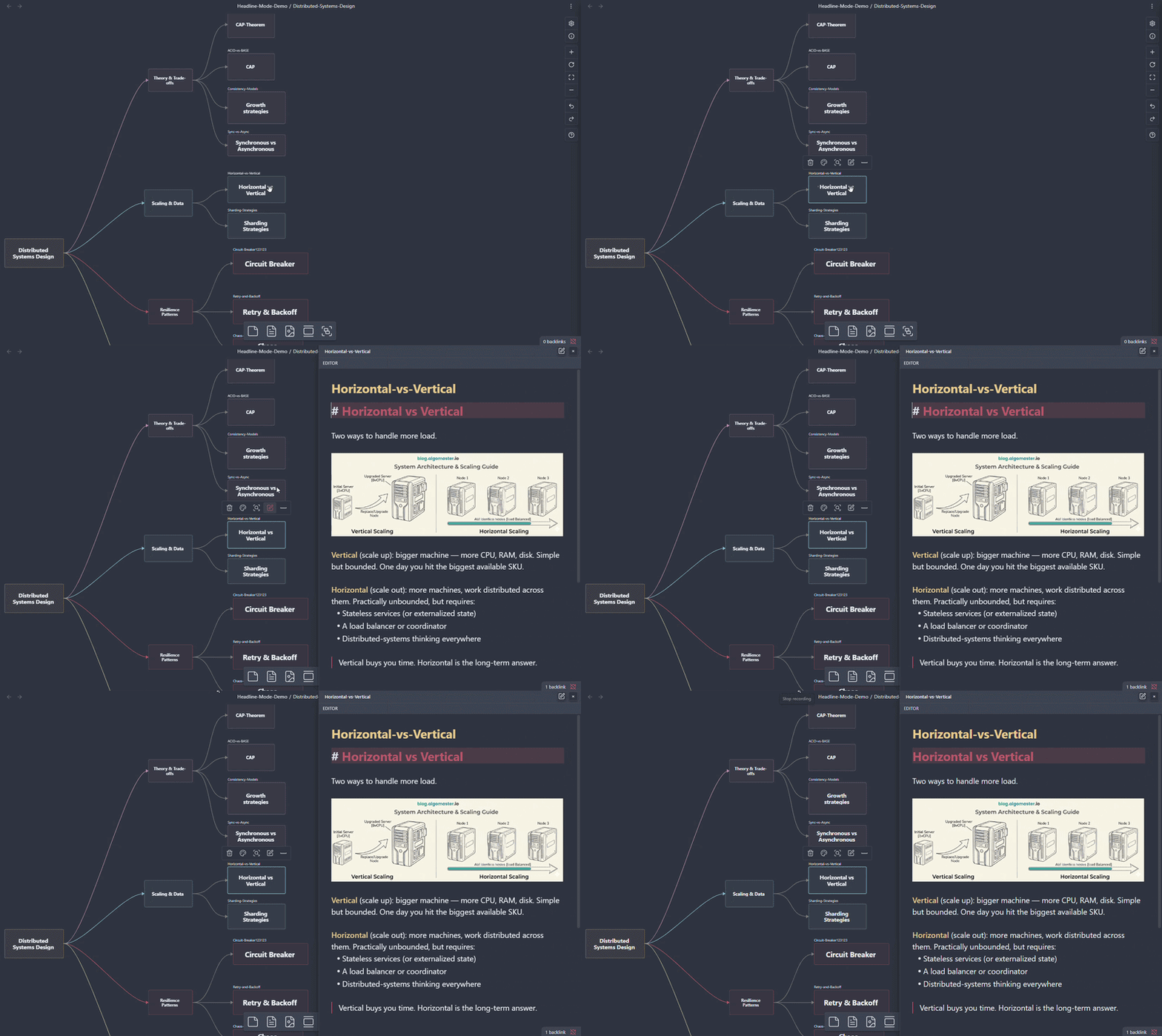
Side editor — open, edit, autosave
https://github.com/user-attachments/assets/b2075ff8-2327-440d-970a-5ca29423bcf1
Click any Canvas card and start typing. Switching cards autosaves. The panel can dock right, left, top, bottom, or float.
Headline mode — turn the canvas into a board of titles
https://github.com/user-attachments/assets/48b1fe0d-a91f-469d-9d64-2fa90e4013ab
Toggle Headline mode in settings to collapse every card to its first
# H1. Standalone image cards keep showing their image; text cards collapse to just their headline (any inline![[image.png]]is hidden along with the body). Cards without a title show a faint "No headline" placeholder so you can spot what's missing.
Why this plugin?
Obsidian Canvas is great for visual thinking, but editing Markdown cards directly inside Canvas is cramped — zoom in, double-click a small card, lose context, repeat. Canvas Markdown Side Editor brings a full Obsidian editor next to the Canvas so you can write comfortably without leaving the big-picture view.
Write Markdown with the comfort of a full editor, while keeping the big picture in sight.
Features
- Flexible docking & floating panel — dock the side editor on the right, left, top, or bottom of the Canvas, or detach it as a floating panel you can drag and resize. Position and size persist per dock.
- Headline mode (issue #13) — vault-wide toggle that collapses every Canvas card to its first
# H1. Get a clean "table of contents" view; full content stays editable through the side editor. Standalone image cards keep showing their image, while text-card bodies (including inline images) collapse to the headline (issue #21). Headline size is tunable as a percentage of card width (5–60%). - Image cards fill their frame (issue #21) — Canvas image cards stretch to fill the whole card (
object-fit: fill) instead of leaving Obsidian's default letterbox gap, and scale up past the image's natural size. Applies to every Canvas image card while the plugin is enabled. - Open-and-edit instantly — clicking a Canvas Text card, or a File card pointing to a
.mdfile, opens the side editor automatically. - Auto-save — saves on card switch or when you click the Canvas background.
- Auto-close while editing inside Canvas — if you focus a Canvas card's own editor, pending changes save and the side panel closes to avoid edit conflicts.
- Paste images — paste screenshots into the side editor; files land in your configured attachment folder and are linked according to your Obsidian settings.
- Live preview — built-in MarkdownRenderer, themed by Obsidian. Toggle preview on/off; resize panes by dragging.
- Read-only mode — preview-only view with the editor hidden. Useful for a clean reading panel.
- Command palette —
Canvas Side Editor: Toggle Previewis bindable to a hotkey.
Quick Start
- Install via BRAT.
- Open a Canvas in Obsidian.
- Click any Canvas Text card, or a File card linking to a
.mdfile. The side editor opens. - Type. Click another card, or the Canvas background, to autosave.
Installation
Option 1 — BRAT (recommended while awaiting Obsidian approval)
This plugin is currently awaiting approval in the Obsidian Community Plugins directory. Until that lands, install via BRAT — it auto-fetches future updates.
https://github.com/user-attachments/assets/82719127-f450-49e9-b99e-b0700451615d
- In Obsidian: Settings → Community Plugins → enable third-party plugins.
- Settings → Community Plugins → Browse → search "BRAT" → Install and enable.
- Settings → BRAT → Add Beta plugin.
- Paste the repo URL:
https://github.com/ShawnSWu/Obsidian-Canvas-Markdown-Side-Editor - Confirm. BRAT installs the plugin and pulls updates automatically.
Option 2 — Community Plugins (once approved)
Settings → Community Plugins → Browse → search "Canvas Markdown Side Editor" → Install → Enable.
Pending Obsidian directory approval.
Option 3 — Manual
Download main.js, styles.css, and manifest.json from the latest Release and drop them into <vault>/.obsidian/plugins/canvas-markdown-side-editor/. Reload Obsidian and enable the plugin.
Configuration
Open Settings → Community Plugins → Canvas Markdown Side Editor.
| Setting | Default | What it does |
|---|---|---|
| Dock position (issue #11) | Right | Right / Left / Top / Bottom / Floating. Floating panels remember position and size. |
| Default panel width | 480 px | Initial width when docked left or right. Drag the panel edge to resize; the width is remembered. |
| Default panel height | 360 px | Initial height when docked top or bottom. Drag the panel edge to resize; the height is remembered. |
| Preview debounce | 80 ms | Delay before the preview re-renders on edits. Increase for very large notes. |
| Read only | off | Hide the editor; show the preview pane only. |
| Headline mode (issue #13) | off | Collapse every Canvas card to its first # H1. |
| Headline title size | 22 | H1 size as a percentage of card width (5–60). Bigger value → bigger text. |
| Editor font size (px) | theme | Override editor font size. Leave blank to follow your theme. |
| Preview font size (px) | theme | Override preview font size. Leave blank to follow your theme. |
Commands
| Command | Default hotkey | Description |
|---|---|---|
Canvas Side Editor: Toggle Preview |
unbound | Flip the preview pane on or off. |
Bind any command to a hotkey from Settings → Hotkeys.
Compatibility
- Requires Obsidian
1.1.0or later. - Desktop only (
isDesktopOnly: true).
Troubleshooting
- Side editor doesn't open — confirm the card is a Text card, or a File card linking to a
.mdfile. Image, PDF, and link cards aren't supported. - Headline mode shows an empty card — that card has no
# H1. A faint "No headline" placeholder appears so you can spot which cards still need a title. - Floating panel opens off-screen after a monitor change — Settings → reset Dock position to Right, then switch back to Floating.
Changelog
See GitHub Releases for version-by-version notes.
Contributing
Issues and pull requests welcome at github.com/ShawnSWu/Obsidian-Canvas-Markdown-Side-Editor/issues.
Local development:
npm install
npm run dev    # esbuild watch
npm test       # vitest
License
MIT — see LICENSE.